eInvoice Validation Explorer for Mustang

Paid product · WordPress plugin and app · Version 1.7.0 · Explains the validation reports of the Mustang validator

Understand your Mustang validation report: every message with field, value and spot in the invoice

The eInvoice Validation Explorer for Mustang turns the validation report of the Mustang validator into an explanation you can understand. You drop the report and the validated e-invoice, that is, the invoice as a structured XML file. For every finding, the Explorer then tells you which field of the invoice is meant, which value it contains and where that spot is in the invoice.

The Explorer does not validate anything itself. It explains what the validator has found. In the plugin this happens on your own website, in the app right in your browser, and no file goes to a third-party service. Together with the free eInvoice Viewer, every finding even appears right below its field in the readable invoice.
App and plugin

The Validation Explorer for Mustang as an app and as a WordPress plugin

The explorer is available as an app: a folder that you unpack and open with a double click, on your computer, on your intranet or in SharePoint. The app needs no server and no validation engine, because it reads a report that already exists. The report and the invoice never leave your computer. You drop the Mustang report together with the checked invoice.

The WordPress plugin is the same explorer with the additional functions of a website: you limit the calls per visitor and day, decide from which role it appears, and show the findings right at the fields of the eInvoice Viewer. The plugin requires the free viewer plugin. App and plugin are paid products and carry the same version number.

The validator reports an error, but not what to do about it

You have had an e-invoice validated with the validator of the Mustangproject, and now you hold a validation report. It contains rule identifiers and long paths through an XML file. Which field of the invoice is meant, you have to work out yourself.

On top of that, a Mustang report does not contain the invoice. It only names the locations. If you want to know which value is objected to, you open the invoice in an editor and work your way through hundreds of lines. Yet in the end all you want is to tell the supplier, the customer or a colleague in one sentence what needs to change on the invoice.

Drop the report and the invoice, read the explanation

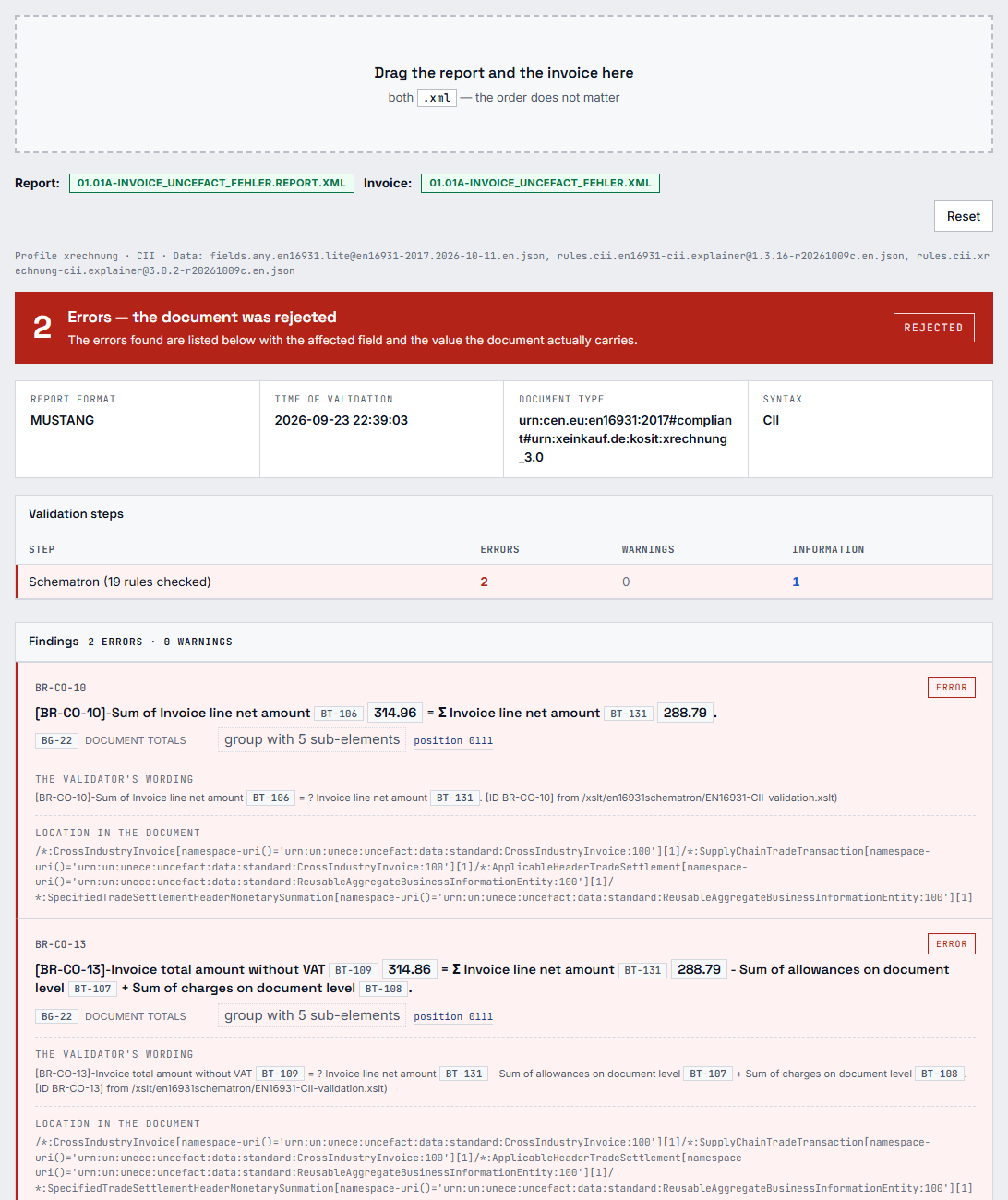
The Explorer brings the two files back together. It matches every finding to the right field of EN 16931, the European standard that defines which details an e-invoice contains. It shows the value that is actually in the invoice and marks the spot in a view of the invoice, the document view.

The Explorer report for a Mustang validation report: result, validation steps and findings with field and value.

  • 1 · Drop the report

    You drop the XML file that the Mustang validator wrote.

  • 2 · Drop the invoice

    Add the validated invoice as an XML file, in one of the two XML forms of EN 16931: CII or UBL.

  • 3 · Read the explanation

    The Explorer connects both files. For every finding you read the plain-language text, the field and its value, and one click takes you to the spot in the invoice.

Two files become one explanation: you drop the report and the invoice, the Explorer connects them, and you read field, value and spot for every finding.

Note Note

1. Install the viewer and the plugin

The plugin requires the free eInvoice Viewer for PEPPOL & EN16931. Install the viewer first, then upload the ZIP file from the shop to WordPress and activate the plugin. The rule and field catalogs are included, so you do not need to configure anything to get started.

Tools Tools

2. Insert the shortcode

You add [spxm_validation_report] to a page. A shortcode is a short placeholder in square brackets that WordPress replaces with the tool.

Adjust Adjust

3. Drop two files

The page has two labeled fields, the upper one for the report and the lower one for the invoice. The order does not matter. As long as a file is missing, the page tells you which one.

What makes the Validation Explorer for Mustang special

Two files, one explanation

A Mustang report only names paths. The Explorer attaches the invoice to the report and so shows, for every finding, the value that is really in the invoice. The plugin sends nothing until both files are there; until then it says, for example, “The validation report is here. The invoice is still missing.”

What you gain: You no longer have to search the invoice in an editor, and an incomplete attempt does not use up an upload from the daily quota.

The affected field and its actual value

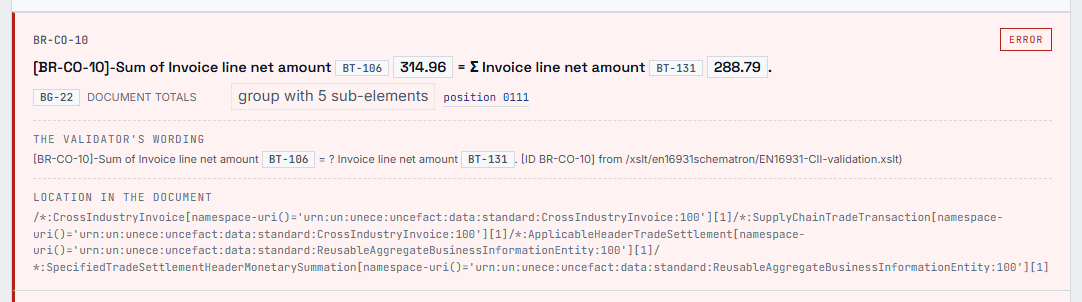
Every finding is matched to its business term of EN 16931, with the BT or BG number. Business Terms (BT) and Business Groups (BG) are the numbered fields and field groups of the standard. If a finding concerns an attachment of the invoice, the Explorer names it, for example “Attachment: Aufmass.pdf”.

What you gain: You see at once which detail the supplier has to change, and you can tell them the wrong value.

A finding with rule, explanation, affected field and the value from the invoice.

What a raw Mustang report shows and what the Validation Explorer adds
Raw Mustang reportWith the Validation Explorer
Rule identifier and validator message✓✓
Explanation in plain language–✓
Affected field with BT or BG number–✓
Value that the invoice contains–✓
Jump to the spot in the invoice–✓
Finding right below its field in the readable invoice–✓

Correct umlauts, even when the report encodes them wrongly

Mustang declares UTF-8 in its report but writes some German message texts in Windows-1252. The Explorer detects this from the file itself, reads the characters correctly and adds a note about the repair at the top of the report.

What you gain: You read German messages without garbled characters and still know that the report was repaired.

No message gets lost

Some messages point to no spot in the invoice, for example because they concern the schema. They appear in the “Not assigned” box at the end, each with its rule identifier, the reason and the path from the report. Warnings appear as warnings and are not counted as errors.

What you gain: You see the complete report and can rely on the page saying the same as your validator, only more clearly.

Search, filter and read in three languages

A search field searches the document view by element name, value or BT number. The “BT numbers” switch shows and hides the numbers, and the “findings only” switch shows only the lines with errors and warnings. The interface is available in German, English and French; German rule texts are available for XRechnung.

What you gain: Even in an invoice with hundreds of lines, a few keystrokes take you to the detail you are looking for.

In the eInvoice Viewer: validate and see the finding at its field

The free eInvoice Viewer for PEPPOL & EN16931 is the central tool for your e-invoices. It displays every invoice in readable form. If the free eInvoice Validator for Mustang is installed on your website, the viewer’s toolbar shows the button “Validate with Mustang”, and the report opens in its own tab, “Mustang Validator”.

With the Validation Explorer for Mustang, the explanations appear right in this tab. A click on “Position” next to a message opens the “INVOICE” tab at the affected field, and there every finding stands as a complete card right below its field. A switch below the messages shows the XML listing instead. On the Explorer’s own page, too, the “Invoice” view shows the uploaded invoice with every finding at its field as soon as the viewer is active.

To our knowledge, the Validation Explorer is the only tool that shows the messages of a finished validation report at the affected field of the readable invoice. A survey of about 35 tools on October 13, 2026 found no other.

What you gain: Reading, validating and understanding happen on one page, and you see an error where it sits in the invoice.

Who the Explorer is for

  • Accounts payable

    An incoming invoice fails validation. The clerk drops the report and the invoice, reads which field is affected and writes the supplier a query that he will actually understand.

  • The service provider

    A tax firm or agency validates invoices for its clients with Mustang. Instead of passing on the raw report, it points to a page on its website where the client can have the report explained.

  • The developer

    Her software writes e-invoices, and Mustang reports errors. For every finding she sees the field of the standard and the value her software wrote, and one click takes her to the spot.

  • The operator of a Mustang validator

    Mustang runs on his own server and writes reports as files. The Explorer is made for exactly such reports that were created elsewhere.

The shortcode

[spxm_validation_report]

With the attribute bt you define for a single page whether the BT numbers are visible when a report opens, for example [spxm_validation_report bt="0"] for accounting.

The settings

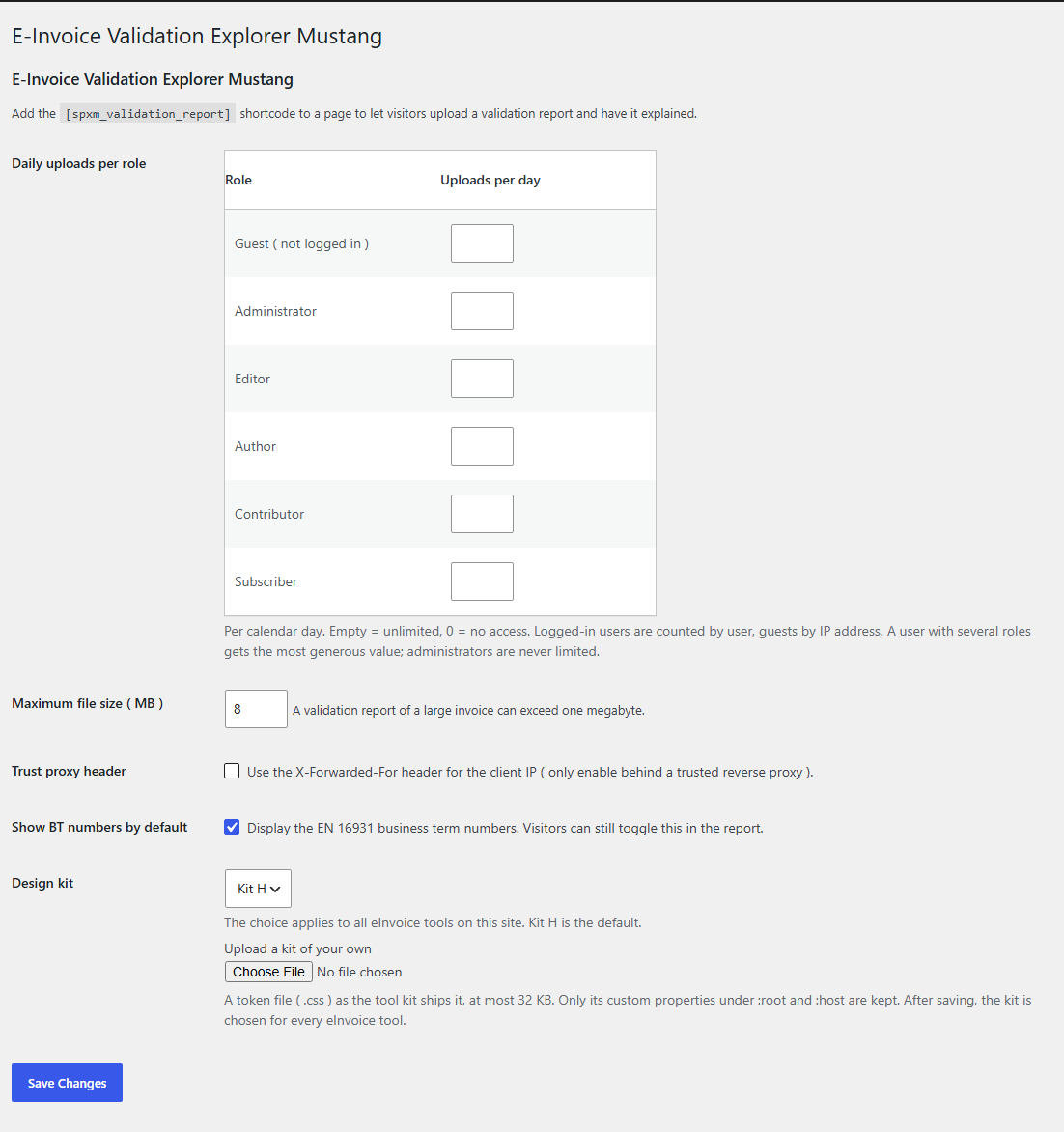
The settings have their own menu entry, eInvoice Validation Explorer → Mustang, in the WordPress admin area. If the plugin cannot find its rule data, a yellow notice there tells you so.

The settings page of the Validation Explorer for Mustang.

The plugin settings and their defaults
SettingDefaultWhat it is for
Daily uploads per role10 per roleOne row for guests and one for each role: empty means unlimited, 0 means no access. Administrators are never limited.
Maximum file size (MB)8Applies to the report and the invoice separately. The upload limit of your server applies as well.
Trust proxy headeroffFor websites behind a reverse proxy that you trust.
Show BT numbers by defaultonVisitors can switch the numbers in the report themselves.
Design kitKit HSets the styling and applies to all eInvoice tools on the website.

For developers

The REST address POST /wp-json/einvoice/v1/explain-mustang accepts the file fields report and invoice and returns the finished view. The manual describes the details.

The report and the invoice stay with you

  • In the plugin, only on your own website

    The report and the invoice go to your WordPress installation as soon as both fields are filled, and only there. The plugin makes no request to another server and loads no fonts from outside.

  • Nothing is kept

    The files are read from the temporary upload in memory. They do not end up in the uploads folder or in any log.

  • In the app, everything stays in the browser

    With its default settings the app makes no request at all. The report and the invoice are read in the browser and sent nowhere.

  • A daily limit without a stored IP address

    The plugin counts logged-in users by their account and guests by a hash of their IP address. The counter expires after one day.

Please note: A report and an invoice usually contain names, addresses, bank details and amounts. If you offer the plugin publicly, this data sits in the memory of your server during the request. Mention this in your privacy policy.

What the Explorer deliberately does not do

  • It does not validate. The result comes from the validator; the Explorer shows it and explains it.
  • It needs the invoice. Without it, it still reads the whole report, but the document view stays empty.
  • It accepts XML files only. A PDF, even a ZUGFeRD PDF, cannot be dropped.
  • It does not read reports of the KoSIT validator. For those there is the eInvoice Validation Explorer for KoSIT.
  • It neither corrects nor stores anything. It writes no invoice, and there is no archive of earlier reports.
  • German rule texts are available for XRechnung. A machine-translated rule text that has not been reviewed yet carries a note.
  • It is not a product of the Mustangproject. The Mustangproject publishes the validator, not this Explorer.

Goes well with

Note Note

eInvoice Validator for Mustang

Validates e-invoices in WordPress with your own Mustang validator, which needs Java on the server, and shows the report in the same plain-language view. Learn more
free

Tools Tools

eInvoice Validation Explorer for KoSIT

The sister tool for the reports of the official KoSIT validator. There one file is enough, because the report carries the invoice. Learn more
Paid product

Adjust Adjust

eInvoice Viewer – Extended Profiles

Also explains the rules of ZUGFeRD / Factur-X EXTENDED and EXTENDED-CTC-FR and shows the values of the extension fields. Learn more
Paid product

14

rule sets are explained by the bundled catalog

8 604

rules with an explanation, from EN 16931 to Peppol BIS

311

fields of EN 16931 are in the field catalog

0

requests to third-party services

The catalog covers EN 16931 in CII and UBL, XRechnung, Peppol BIS Billing 3, Factur-X EN16931, the French Flux 2 rules and the national adaptations for Portugal, Romania, Croatia, Belgium and Italy. Three more rule sets with 3,190 rules, Factur-X EXTENDED and EXTENDED-CTC-FR, are explained with the “Extended Profiles” add-on.

Frequently asked questions

No. It explains a validation report that the Mustang validator has already written. If you want to run the validation itself in WordPress, use the free plugin “eInvoice Validator for Mustang”.

A Mustang report does not contain the invoice; it only names the locations as paths. Only with the invoice can the Explorer show the value at the spot that is objected to.

The Explorer still shows all findings. A note appears above them, or the messages are listed under “Not assigned”. Then check whether this really is the file the validator checked.

WordPress 6.0 or newer, PHP 7.4 or newer and the free eInvoice Viewer for PEPPOL & EN16931, because WordPress activates the Explorer only while the viewer is active. The Explorer does not need Java; only the Mustang validator that writes the report does.

Yes. The plugin and the app are one product with the same version number. The app is a folder whose start file you open in your browser with a double-click, on your computer, a network drive or your web server. There you drag both files onto one area together, and the app recognizes the report by its content.

No. In the plugin they are processed only during the request in the memory of your server, in the app only in the browser. Nothing goes to invoicePress or to a third-party service.

Without the “Extended Profiles” add-on, a finding on a rule of the extension shows the validator’s identifier and message, and a note says what the add-on would add. With the add-on, these rules are explained and the extension fields appear.

Turn your next Mustang report into an explanation anyone can follow. Buy the Validation Explorer for Mustang in the invoicePress.de shop, place the shortcode on your page or open the app, and see field, value and spot for every finding.