eInvoice Viewer — Exporter

Add-on for the free eInvoice Viewer · WordPress plugin · Paid product · Version 1.10.0

Your e-invoice as an Excel spreadsheet, one click from the Viewer

The Exporter adds an “Export to Excel” button to the free WordPress plugin eInvoice Viewer for PEPPOL & EN16931. One click is all it takes: the invoice you are reading in the Viewer is turned into a filled-in Excel spreadsheet. Every field of EN 16931 has its fixed place in it; EN 16931 is the European standard that defines which data an e-invoice contains.

Because the Exporter takes exactly the values the Viewer already displays, the spreadsheet always matches the screen. And the invoice is never sent to an outside service, only to your own server.
Plugin only

The Exporter in the WordPress plugin

The Exporter is available only as a WordPress plugin next to the free viewer plugin, not as an add-on for the app. In the plugin you limit the calls per visitor and day and decide from which role the add-on appears.

You can read the invoice, but you cannot work with it

An e-invoice is an invoice stored as a structured file that a program can read. The Viewer already shows you what it contains. Often, though, you want to use the data: store it in a spreadsheet, compare it with the purchase order, pass it on to a colleague or show the supplier which field is missing.

Without the right tool, all you can do is type the values by hand or copy them field by field. For an invoice with many lines this takes time, and mistakes creep in easily.

On top of that, an e-invoice is not built like a simple table. Lines, free texts and allowances appear once in one invoice, ten times in the next and not at all in a third. A fixed list therefore rarely fits the invoice in front of you.

One button turns the open invoice into an Excel file

The Exporter fills a prepared Excel template, which contains the field catalog of EN 16931, with the values from your invoice. You get a file in which every field of the standard sits in its place and the invoice is shown the way it is really structured. The table below shows what the Exporter adds to the free Viewer.

Free Viewer With Exporter
Open and read an e-invoice ✓ ✓
“Export to Excel” button in the view – ✓
Filled-in EN 16931 field catalog as an .xlsx file – ✓
Each line as its own block, as often as in the invoice – ✓
Daily limit per visitor for public pages – ✓
What the free Viewer already does and what the Exporter adds.

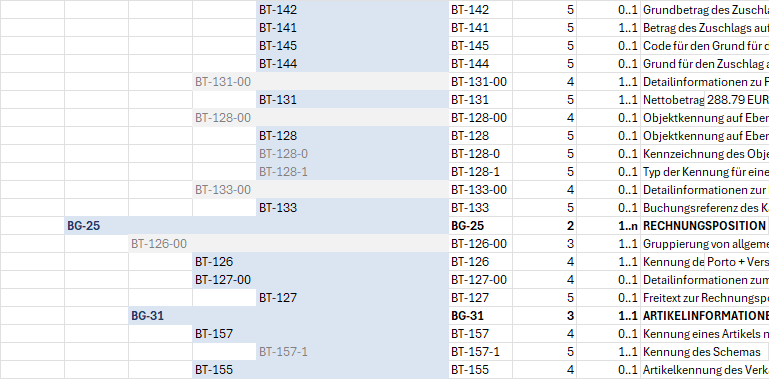
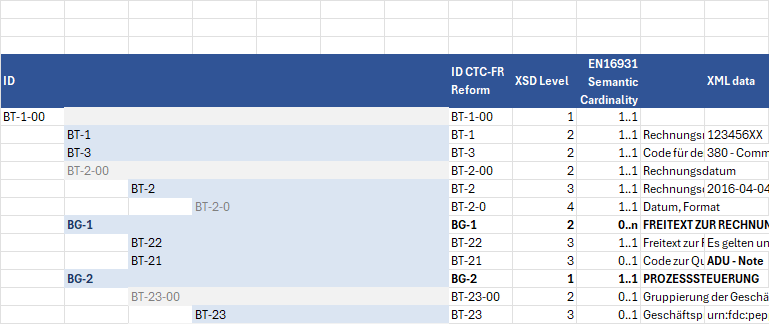
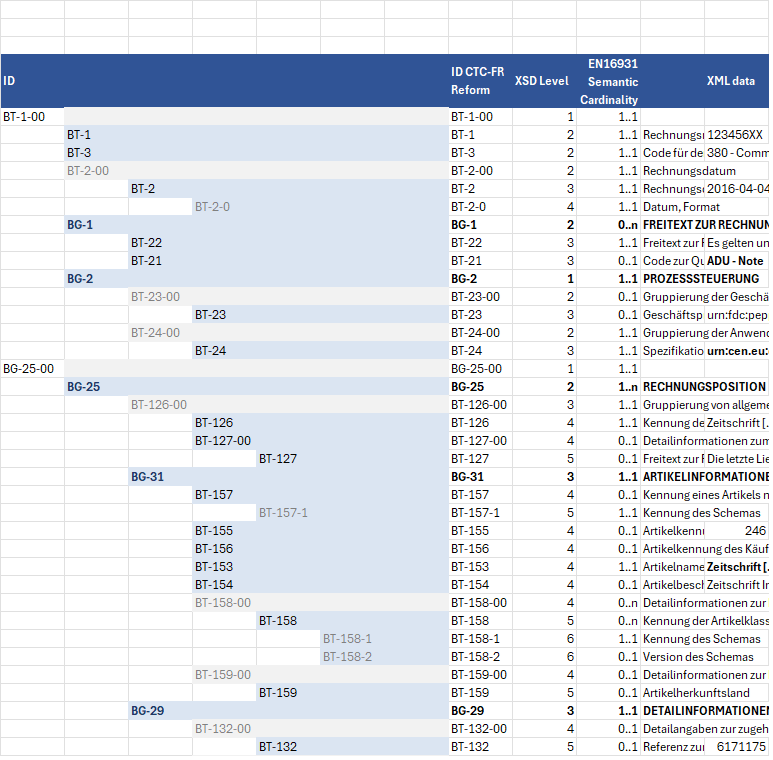
Excel file created from a read invoice. Each row shows the field number, the path in the CII XML format, the level in the XML schema, how often the field may occur under EN 16931, the name of the field and the value from the invoice.

Note Note

1. Activate the plugin

You upload the ZIP file from the shop to WordPress and activate the Exporter next to the Viewer. There is nothing to configure to get started.

Tools Tools

2. Open an invoice

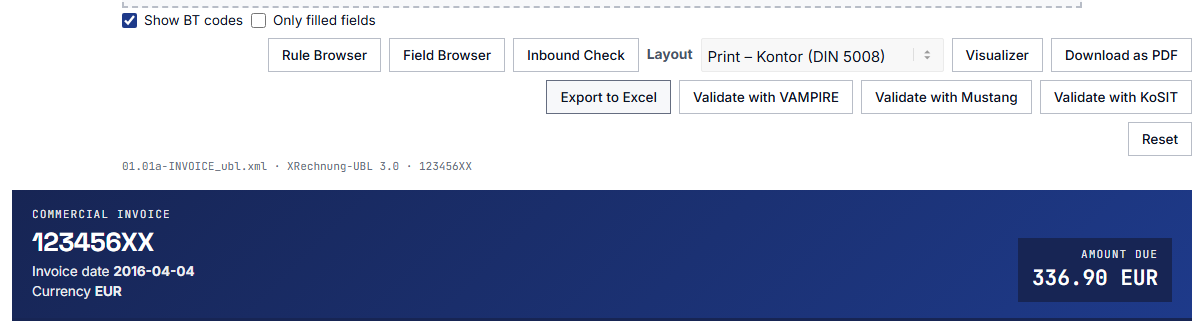
You load an e-invoice into the Viewer as usual. The “Export to Excel” button now appears next to the result.

Adjust Adjust

3. Press the button

Your browser downloads the filled-in Excel file, and you open it in your spreadsheet program.

The button sits right where you read the invoice

The Exporter adds no page, no upload field and no shortcode of its own. A shortcode is a short placeholder in square brackets that WordPress replaces with a tool on the page. The “Export to Excel” button appears by itself in the Viewer’s result view, wherever the Viewer is embedded.

What this means for you: Neither you nor your visitors have to learn anything new. The export is one click away from the invoice that is currently open.

The Viewer’s result view with the “Export to Excel” button highlighted.

The EN 16931 field catalog, already filled in

The Excel file is based on a prepared template with the field catalog of the standard. Every field has its own block of rows containing the value from your invoice, and the cell formats of the template are kept. If the invoice does not state a total, the cell stays empty instead of being filled with 0.00. That way you see at a glance what is really in the invoice.

What this means for you: Instead of a loose list of values you get an ordered table in which you find every field of the standard and can carry on working right away.

Five lines result in five blocks

Some field groups may repeat in an invoice, for example the invoice lines, the free texts and the allowances and charges per line. Such groups appear in the file exactly as often as they occur in the invoice: an invoice with five lines gets five line blocks. A group that is missing from the invoice is left out of the file rather than kept as an empty placeholder.

What this means for you: The table has the shape of your invoice. You neither have to delete empty blocks nor add missing rows by hand.

In the Excel file, each line of the invoice has its own block.

The same values as on the screen

The Exporter does not read the XML file a second time. It uses the invoice data the Viewer has already read. This is why the export can never differ from what the Viewer shows on the screen.

What this means for you: What you checked on the screen is exactly what is in the file. There is no need to compare the table with the display again.

The template matches the language of the view

The Exporter follows the language in which the Viewer is currently displayed and uses the German, the English or the French template. In the current version, however, the field labels in the English and the French template are still in German.

What this means for you: On a multilingual website, every visitor gets the template that belongs to their view without having to choose anything.

An export from the English view of the Viewer uses the English template.

A daily limit for each visitor

The Exporter counts how often a visitor exports on a calendar day. The default is 20 exports. Logged-in users are counted per user account, visitors who are not logged in per IP address. The IP address is only used as a hash value for this, which is a converted form from which the address cannot be recovered. Setting the value to 0 removes the limit.

What this means for you: You can offer the export on a public page too, without a single visitor being able to keep your server busy as often as they like.

  • The clerk in the accounting department

    She opens an incoming invoice in the Viewer, presses the button and files the Excel file with the case. If a question comes up, she marks the field concerned in the table and forwards the file.

  • The consultant who goes through an invoice field by field

    He needs the invoice in the order of the standard so he can discuss with the client which fields are filled. The file shows him the field catalog with the values, and every repeated group appears in it as often as it really occurs.

  • The law firm or software company with a public Viewer

    The Viewer runs on the company’s own website as a service for clients or customers. With the Exporter, visitors can also take their invoice with them as a spreadsheet, and the daily limit keeps usage within bounds.

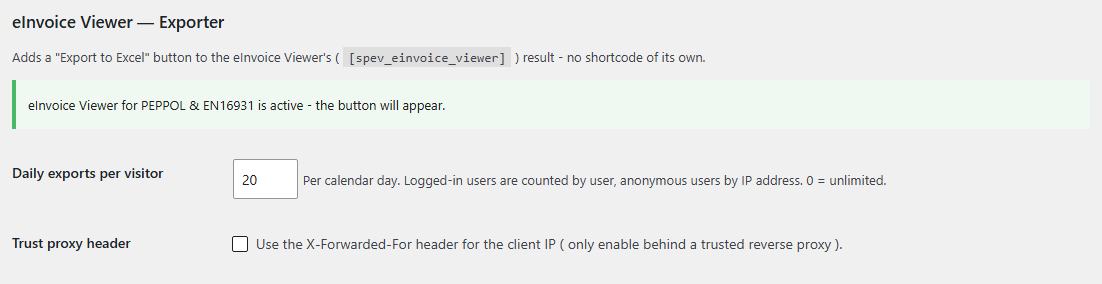
You do not need to configure anything to get started. The Exporter has no menu item of its own; you find its settings as a separate section on the Viewer’s settings page under eInvoice Viewer → Viewer. A green status line there tells you that the Viewer has been detected and the button will appear.

The two settings of the Exporter with their defaults.
SettingDefaultEffect
Exports per visitor and day20The number of exports a visitor may trigger on one calendar day. The value 0 means unlimited.
Trust proxy headeroffThe Exporter then reads the visitor’s address from the header field X-Forwarded-For. Only turn this on if your website runs behind a trusted reverse proxy, which is a server in front of your site that passes requests on to it.

The button appears wherever the Viewer is embedded with its shortcode [spev_einvoice_viewer].

Starting with Viewer version 2.38, you can also turn the button off for a single page without deactivating the Exporter. Add the switch button_spev_export="no" to the shortcode on that page, as in [spev_einvoice_viewer button_spev_export="no"].

What you get: You can offer the Viewer without export on a public page and with export in your internal area, all from the same installation.

The Exporter’s section on the Viewer’s settings page contains the two settings.

  • The export runs on your own server.

    When you press the button, the browser sends the read invoice data to your WordPress installation, and the Excel file comes back from there.

  • Nothing goes to third parties.

    The Exporter makes no requests to other servers and uses no outside service.

  • No file is left behind.

    The transferred data and the generated Excel file exist only for the duration of the request. Nothing of it is written to the media library or the database; only the settings and the short-lived counters of the daily limit are stored.

  • No public interface.

    The export can only be reached through a so-called AJAX action inside your WordPress, which is a call the page sends to your own server in the background. This call requires a valid security token. The plugin adds no REST route, so there is no address that could be called from outside.

1 · Your browser
the Viewer has read the invoice
2 · Your WordPress server
the Excel file is created
3 · Back to you
download of the .xlsx file
How the data travels during an export: from the browser to your own server and back as an Excel file, with no outside service involved.

Check it yourself: Press F12 to open your browser’s network panel, then press the button. You will see one request to your own website and none to an outside address.

What the Exporter deliberately does not do

  • It does not read the invoice itself. It takes the invoice data the Viewer has already read and writes it to Excel. Without the Viewer, it therefore does nothing.
  • It does not convert an invoice between UBL and CII. UBL and CII are the two XML forms in which an e-invoice under EN 16931 can exist. The Exporter does not offer such a conversion for download either.
  • It does not export to DATEV or to any other accounting format.
  • It does not yet export the EXTENDED profile in full. ZUGFeRD and Factur-X are PDF files with an embedded XML invoice; the format is called ZUGFeRD in Germany and Factur-X in France. EXTENDED is the profile with the most fields. An invoice in ZUGFeRD EXTENDED or Factur-X EXTENDED is exported with its core fields; the additional fields are missing from the file.
  • The English and the French template still carry German field labels.
  • It is not an archive. It stores neither the invoice nor the generated file.
  • Today it runs only in WordPress. The Excel file is created on your WordPress server. An add-on package for the Viewer app is planned but not yet available.
Note Note

eInvoice Viewer for PEPPOL & EN16931

The Viewer reads the invoice and shows it as an easy-to-read document. The Exporter requires it.
free

Tools Tools

Extended Profiles

Extended Profiles also shows the additional fields of ZUGFeRD/Factur-X EXTENDED in the Viewer. Even with this add-on, the Excel export stays with the core fields.
Paid product

1

click from the open invoice to the Excel file

3

templates: German, English and French

20

exports per visitor and day by default, and you can change the value freely

0

requests to outside servers, and no file is left behind on your server

The Exporter exports the invoice that is open in the Viewer. It uses the core template of EN 16931 for this and delivers a file in the .xlsx format that you open in your spreadsheet program.

Yes. The Exporter does nothing on its own, because the Viewer reads the invoice and displays the button. It therefore needs the installed and active plugin eInvoice Viewer for PEPPOL & EN16931, which is free.

The export uses the core template of EN 16931 in the language of the view, that is German, English or French. In the English and the French template the field labels are still in German. Invoices in the EXTENDED profile are exported with their core fields; the additional fields are not yet included in the file.

During the export, the read invoice data goes to your own WordPress server, where the Excel file is created. Nothing goes to an outside server, and after the request nothing of it remains stored on your server either.

No. The Exporter has one job: it turns the open invoice into an Excel file.

The file carries the name of the invoice file with the suffix -export.xlsx. So invoice-4711.xml becomes invoice-4711-export.xlsx.

Yes. Since version 1.10.0, invoices that name XRechnung 4.0 or the new version EN 16931-1:2026 can also be opened and exported.

Under eInvoice Viewer → Viewer. There you will find the section “eInvoice Viewer — Exporter”.

The Exporter is a paid product. You can see the price in the shop on invoicePress.de, where you get the Exporter as a ZIP file. The Viewer it requires is free.

Stop retyping invoices: get the Exporter in the shop and take your next e-invoice with you as an Excel spreadsheet in one click. You do not have the Viewer yet? It is free, and the Exporter requires it.

11,90 € incl. VAT · instant download after purchase