eInvoice Viewer for PEPPOL & EN16931

Free · As an app without installation · Also as a WordPress plugin

Read e-invoices without deciphering XML. Free and right in your browser.

The eInvoice Viewer shows you any e-invoice as a clear, well-organized document. You drag the file into the page and see right away who is charging what, with all fields, all bank accounts and all attachments.

An e-invoice is an invoice stored as a structured file that a program can read, but is hard for a person to read. An XRechnung, the German standard for invoices to public authorities, consists of nothing but this XML data, and a ZUGFeRD PDF only shows the picture that the sender printed into it. The viewer shows you what is really in the data.

One viewer for everything you do with an e-invoice. Since version 2.38, the viewer has tabs for the invoice, its XML and its PDF, and every tool you add gets a tab of its own there. This lets you validate the same invoice with the official KoSIT validator, with Mustang or with VAMPIRE, compare the PDF with the invoice data, show the payment code for your banking app and export to Excel. You open the file only once.

The viewer is a free app. You unpack a folder and open the viewer with a double click, on your computer, on your intranet or in a SharePoint page. You need no installation and no account, and while you view it, the invoice never leaves your browser. If you want to offer the viewer to the visitors of your own website, you use the same tool as a WordPress plugin and also get call limits, roles and the connection to a validation engine on your own server.
0

outside calls while reading an invoice, measured

7

invoices outside EN 16931 detected and named

144

official sample invoices tested

3

languages: German, English, French

How to get the viewer

One viewer, four ways. The app comes first.

Tools Tools

As an app for your computer, intranet and SharePoint

The app is a free folder with an HTML file. You unpack it and open the viewer with a double click, on your computer, on a network drive, on your intranet or embedded in a SharePoint page. The app brings all its data along and loads nothing from the internet. Add-ons simply go into the same folder. Go to the app

Doc Doc

As a single file to pass on

Every app package also contains the one-file app: the viewer as one single HTML file that you pass on by e-mail or on a USB stick. It comes in English and loads further languages, code lists and the manual from the internet when needed. You find a demo of the one-file apps on einvoiceTools.de. Demo on einvoiceTools.de

Note Note

Try it online

There is nothing to download: drag an invoice of your own into the demo on this website. There, too, the file does not leave your browser. Our free test e-invoices are ideal for trying it out. Go to the demo

Search Search

As a WordPress plugin

The same tool is available as a free plugin in the WordPress.org directory. A shortcode, a short placeholder in square brackets, shows the viewer on a page of your website. The plugin brings additional functions: you limit the calls per visitor and day, decide from which role a tool appears, and connect a validation engine on your own server. Go to the plugin
Real screen output, not a mockup

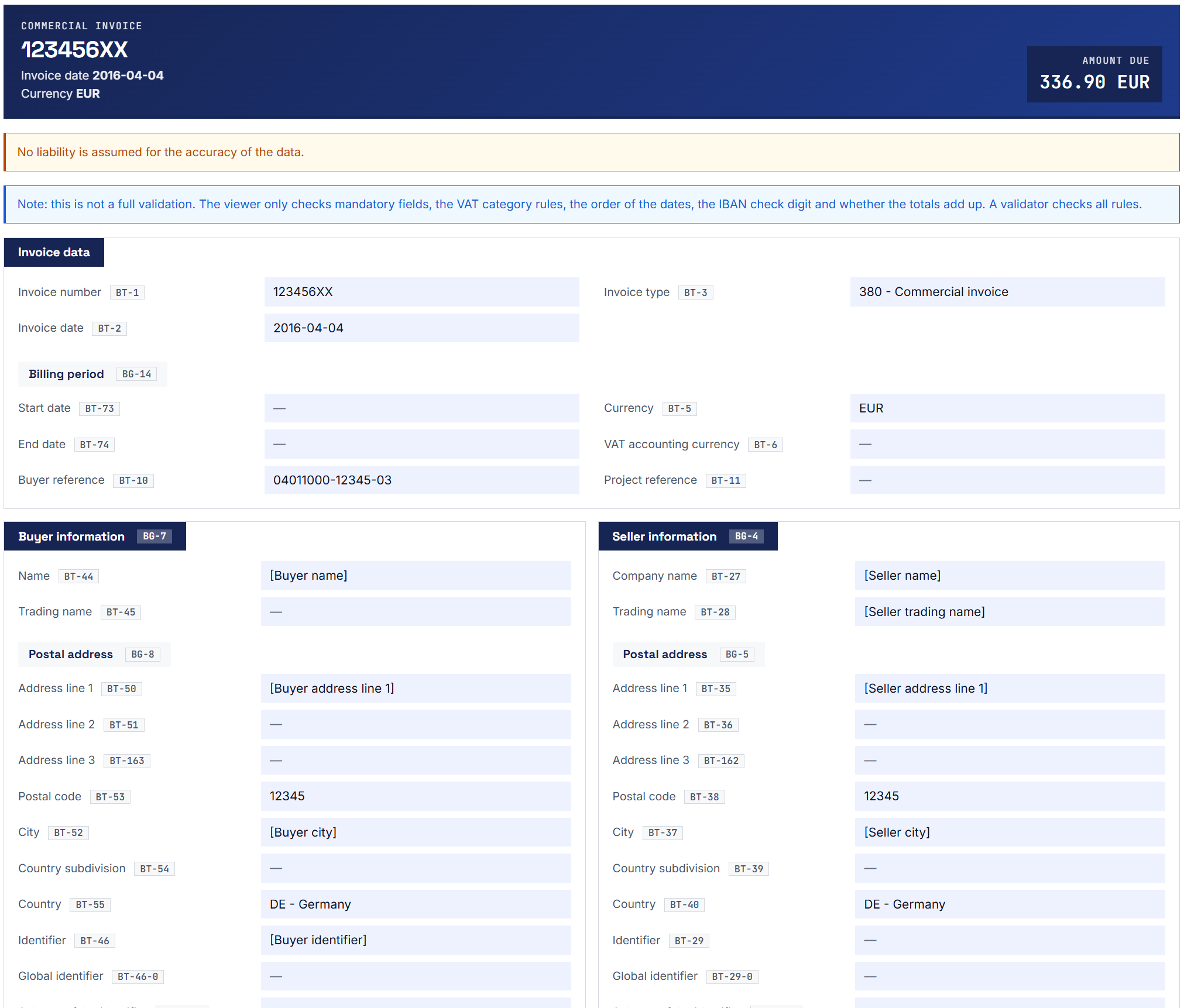
eInvoice Viewer: dieselbe Rechnung mit eingeblendeten EN-16931-Kennungen

This is what a loaded invoice looks like. At the top is the document header with invoice number, date, currency and amount due, and the fields follow below, line by line. Next to each field is its identifier from EN 16931, the European standard that defines which data an e-invoice contains. This way you find every detail quickly and can refer to it precisely.

1 · Drop the file
XML or PDF
2 · The viewer reads it
in your browser
3 · Read the document
all fields, accounts and attachments
It is this simple: you drop the file, the viewer reads it in your browser, and you see the finished document.

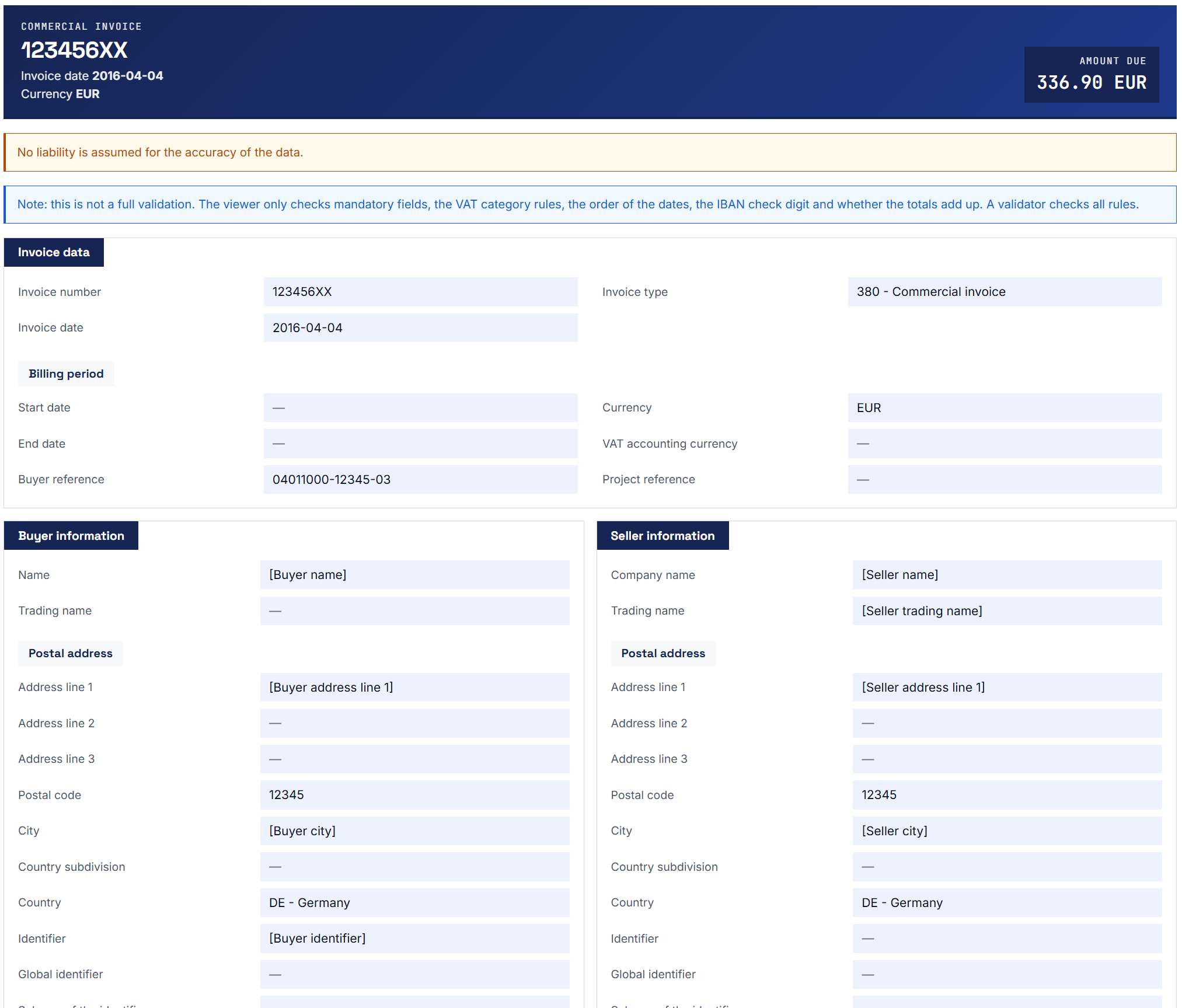
An e-invoice in the reading view of the eInvoice Viewer: the document header with the amount due at the top, and invoice data, buyer and seller below.

The reading view without identifiers is meant for everyone who simply wants to read the invoice.

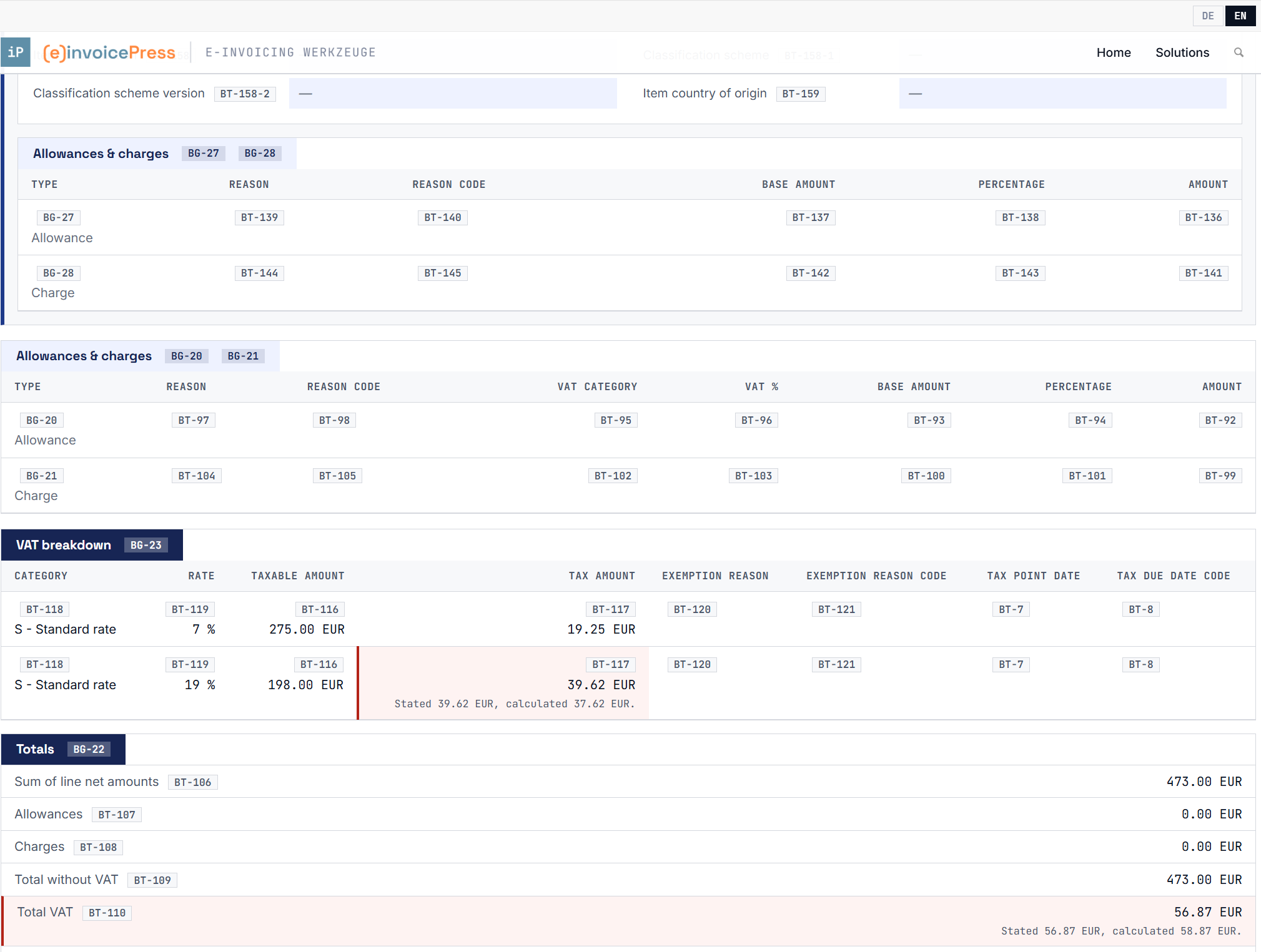
An amount that does not add up: the field is marked in red, and the stated and the recalculated amount are shown below it.

Calculation errors stand out at once. If an amount does not add up from its parts, the field is marked in red, and the stated and the recalculated amount appear below it. You see the difference before you pay.

For everyone who receives e-invoices

See at a glance what the invoice says and what is wrong with it.

Note Note

Readable like a document

Invoice header, parties, line items, VAT and totals are shown in a clear order, one below the other. This also works for a plain XML file without a visual image, which you could otherwise not read at all.

Adjust Adjust

Calculation errors marked

The viewer recalculates line items, VAT and totals. If an amount does not add up, it is marked in red, and both amounts appear below it for comparison.

Search Search

Anomalies with a reason

The viewer marks, for example, a missing mandatory field or a due date that lies before the invoice date. A line below says what is wrong and names the rule, so you can ask the sender a precise question.

Star-empty Star-empty

Nothing stays hidden

The viewer shows every bank account and every means of payment in the invoice, not only the first one. You view attachments right there and save them when you need to.

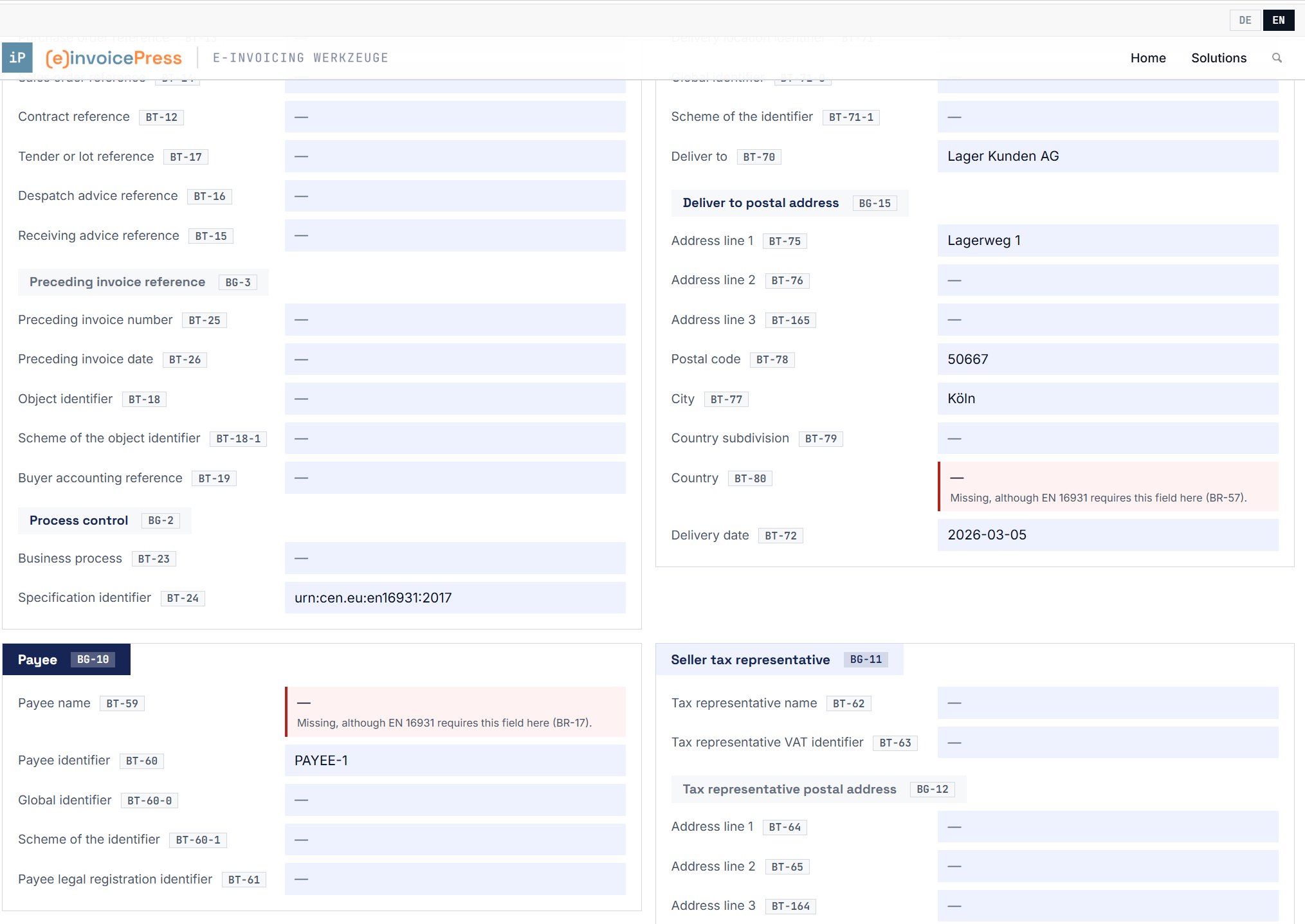
An invoice with missing mandatory fields: each affected field is marked in red, with the violated rule below it.

Missing mandatory fields are marked in red. Below each field is the rule that requires it.

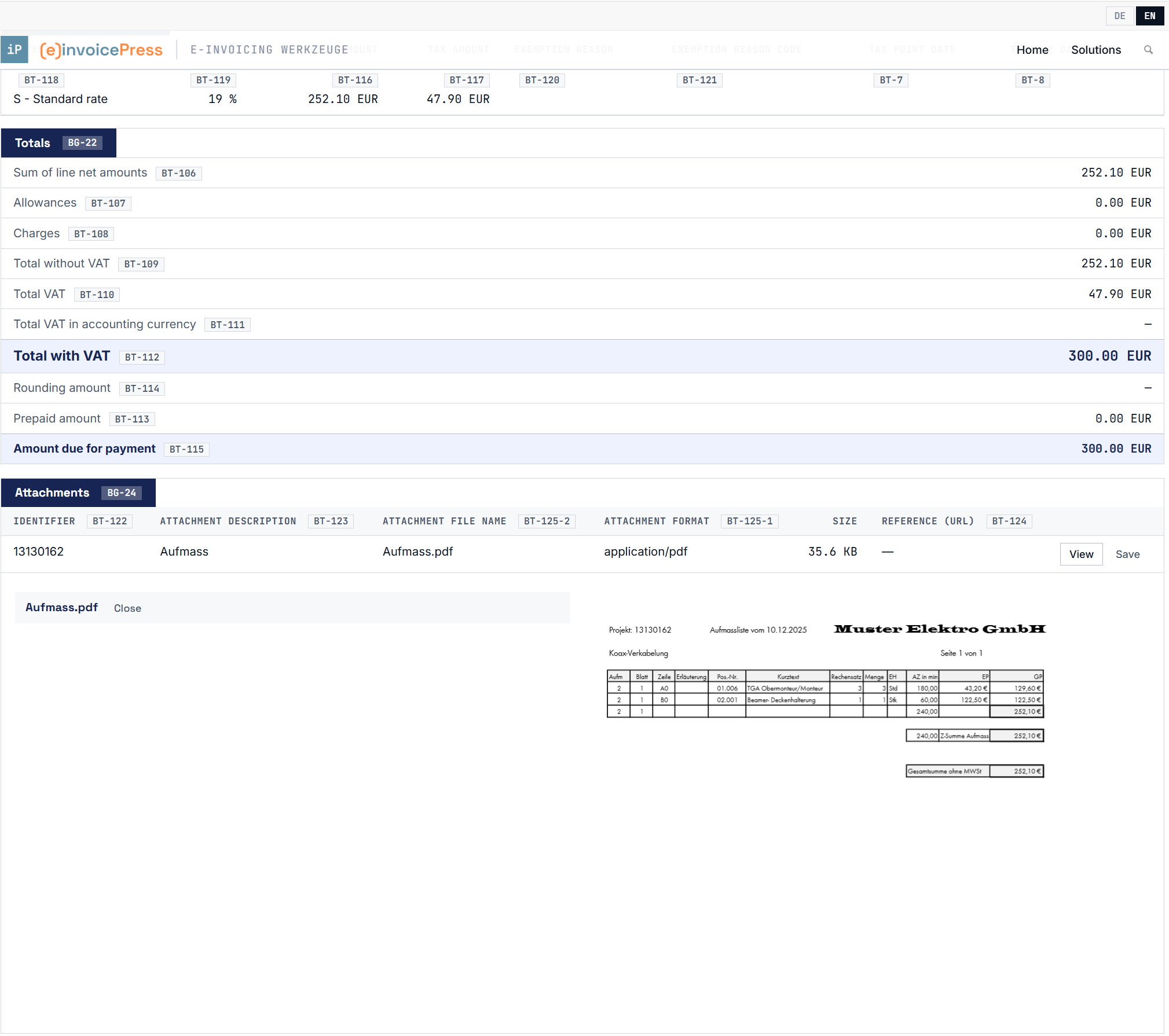
The Attachments section below the invoice with an opened PDF attachment.

Attachments are listed below the invoice with name, type and size. PDF files and images open directly in the page, without any other program.

The viewer alone is not a validator. A validator is a program that checks an invoice against all the rules of its format. The free viewer shows what is in the invoice and only marks what can be seen from the invoice itself. It cannot read a PDF without embedded invoice data, for example a scan. In that case, it tells you so.

Get more out of the viewer. If you need more, you connect a validator or add add-ons. An add-on is an additional plugin or, for the app, an add-on package you drop into its folder. Once it is installed, its feature appears in the same view, and the invoice is not read a second time. The next section shows which tools are available.

What you want to do Viewer (free) With add-on
Read any e-invoice as a document ✓ ✓
Have totals and VAT recalculated ✓ ✓
See for every field whether it is mandatory, which values are allowed and which rules apply – ✓ Technical Details
See the additional fields of ZUGFeRD/Factur-X EXTENDED – ✓ Extended Profiles
Output the invoice as a print-ready document and as a PDF – ✓ Visualizer
Transfer the invoice data into an Excel file – ✓ Exporter
Check identifiers such as VAT IDs, LEIs and IBANs for their correct structure – ✓ Identifier Check
Check whether the invoice is addressed to your company and the money goes to a known account – ✓ Inbound Check
What the free viewer already does and what each paid add-on adds.


One viewer, many tools

One viewer, many tools: read, validate, safeguard and output in one place.

Ready-made selections with a live demo: add-ons for incoming invoices (check and safely pay what you receive) and add-ons for outgoing invoices (check and output your own invoices before sending).

With an e-invoice, you usually want more than to read it. You want to know whether it is valid, whether it really comes from your supplier, whether you can pay it and how the data gets into your accounting. The eInvoice Viewer is your central tool for all of this: you open the invoice once, and everything else happens in the same view.

Tabs instead of windows. The tabs sit below the toolbar. INVOICE shows the document. XML shows the invoice the way the validators do, one line per element with position, name, BT number and value, plus a search. PDF shows the pages of a PDF invoice, including a PDF embedded in an XML invoice. Every add-on with a result gets a tab of its own. A second click on its button opens the tab again without running the add-on once more.

What this means for you: you don’t switch between programs and you don’t upload a file several times. The validation report, fraud protection, payment code and export always refer to exactly the invoice in front of you.

Add-ons for the app and the plugin. Every tool below is a separate extension of the viewer. In the app you put the add-on into the viewer’s folder, and it appears the next time you start it; in WordPress you install it as a plugin of its own. Some functions exist only in the plugin, such as the lookup in public registers in the Identifier Check or the PDF in the Visualizer. Exporter and Technical Details are available as plugins only.

Validate against the official rules and see errors at the field

Tools Tools

eInvoice Validator for KoSIT

Free. The “Validate with KoSIT” button sends the open invoice to your own official KoSIT validator, also for a ZUGFeRD or Factur-X PDF. The report appears in the “KoSIT Validator” tab, with report.xml and report.html for download. Learn more

Tools Tools

eInvoice Validator for Mustang

Free. The “Validate with Mustang” button checks the same invoice with the Mustangproject validator that you place on your own server. The report appears in the “Mustang Validator” tab, with report.xml for download. Learn more

Tools Tools

eInvoice Validator for VAMPIRE

Free. The “Validate with VAMPIRE” button checks against the official rules right on your web server, with no Java at all. The report appears in the “VAMPIRE Validator” tab, with report.xml and report.html. Learn more

Search Search

Validation Explorer for KoSIT

Paid product. Explains every message of the KoSIT report in plain language, right in the validator’s tab. A click on “Position” opens the invoice at exactly the field, with the finding shown as a card below it. Learn more

Search Search

Validation Explorer for Mustang

Paid product. Makes the Mustang report easy to understand: every message with its EN 16931 field and the value from the invoice, and every finding right below its field in the INVOICE tab. Learn more

Search Search

Validation Explorer for VAMPIRE

Paid product. Explains every VAMPIRE finding in plain language, with the field and the value from the invoice. “Position” on a message takes you to the right place in the INVOICE tab. Learn more

Safeguard before you pay

Adjust Adjust

Hybrid Check

Paid add-on. For ZUGFeRD and Factur-X, it compares the PDF with the invoice data: invoice number, total amount and bank account. If the XML holds a different IBAN than the PDF, you see it in the “Hybrid Check” tab and at the field, without a click. Learn more

Star-empty Star-empty

Inbound Check

Paid add-on. Checks before payment whether the invoice is addressed to your company, whether the mandatory details are there and whether the bank account is known in your supplier list. The result has its own tab. Learn more

Search Search

Identifier Check

Paid add-on. Checks VAT IDs, IBAN, GLN, LEI and other identifiers for structure and check digits and marks every error at its field. In the plugin, it can also query public registers. Learn more

Note Note

EPC QR Code

Paid add-on. The “Transfer code” tab shows the EPC QR code that German banks call GiroCode. Your banking app reads beneficiary, IBAN, amount and remittance information, so nobody has to type anything. Learn more

See more, print and pass on

Note Note

Extended Profiles

Paid add-on. Shows the additional fields of ZUGFeRD/Factur-X EXTENDED and EXTENDED-CTC-FR exactly where they belong in the invoice. Learn more

Tools Tools

Technical Details

Paid add-on. Adds cardinality, data type, business rules and the CII and UBL paths to every tooltip, and brings a field, a rule and a reference browser. Learn more

Brush Brush

Visualizer

Paid add-on. Shows the invoice in the “Layout” tab as a printable document in five layouts. In the plugin, it can also produce a PDF/A-3 with the invoice XML embedded. Learn more

Adjust Adjust

Exporter

Paid add-on. Transfers the open invoice to an Excel file with one click, with a place for every EN 16931 field. Learn more

Correct, enter and manage invoices

Pencil Pencil

Editor

Paid add-on. Makes the invoice view editable: you correct an invoice or enter a new one by hand, and the viewer recalculates and checks at the field. Available for the app and the plugin.

List List

Invoice Monitor

Paid add-on. Keeps your incoming and outgoing invoices in lists, creates the SEPA file for your transfers and bundles the documents for your tax adviser. Available for the app and the plugin.

Validation without an outside service. A validation button sends the invoice on screen to the validation engine you set up yourself, for example your own official KoSIT validator or VAMPIRE on your web server. In the plugin, you decide under “Available from role” whether and for which role a button appears.

To be clear: the viewer itself sends the invoice nowhere. Some tools do, because they cannot work otherwise: the validators send the invoice to the validation engine you configured, and Exporter, Visualizer, Identifier Check and Inbound Check send the invoice or data read from it to your own WordPress website. Each tool says so in its manual.

What the viewer reads

Three input formats, one consistent view.

Note Note

ZUGFeRD / Factur-X (PDF)

ZUGFeRD and Factur-X are a PDF that also contains the invoice as an XML file. In Germany this format is called ZUGFeRD, in France Factur-X. The viewer takes the XML file out of the PDF by itself and reads it. If the embedded invoice is missing, it tells you so with a clear message.

Search Search

CII (UN/CEFACT) XML

CII is one of the two XML forms in which an e-invoice under EN 16931 can exist. The viewer reads it directly. ZUGFeRD/Factur-X and the CII variant of XRechnung use this form.

Tools Tools

UBL XML

UBL is the second XML form of EN 16931. With it, the viewer reads XRechnung in its UBL form and Peppol BIS Billing 3.0. Peppol is a European network for exchanging e-invoices between companies and public authorities. The viewer also reads credit notes: it shows a document of the type CreditNote like an invoice and labels it as a credit note.

The viewer detects the format from the content of the file, not from the file extension. So you don’t need to know whether a .xml file contains UBL or CII, and you don’t have to choose anything. Some invoices follow a specification outside EN 16931, for example PINT from Japan or Singapore, or OIOUBL. The viewer detects and names such invoices instead of showing them as if they were built according to EN 16931.

Full coverage of EN 16931

All 164 fields in 32 groups of the standard, 268 fields in 43 groups when the attribute fields are counted.

EN 16931 numbers its fields as business terms (BT) and its field groups as business groups (BG). The viewer reads and shows every business term and every business group in the invoice, including rarely used blocks such as the payee or the tax representative. We measured this coverage against a collection of sample invoices; it is not an estimate.

The viewer’s catalog also lists the subordinate attribute fields, for example the information under which scheme an identifier was issued (BT-29-1), as well as the group headings. Only with these can the viewer really show every field. Some of the blocks it shows in full:

  • BG-10 Payee — BT-59, BT-60, BT-61
  • BG-11 / 12 Seller tax representative — BT-62 … BT-69, BT-164
  • BG-20 / 21 Document level allowances and charges — BT-92 … BT-105, with base amount, percentage and reason code
  • BG-27 / 28 Line level allowances and charges — BT-136 … BT-145, in the same depth
  • Tax BT-7 Value added tax point date, BT-8 Value added tax point date code, BT-121 VAT exemption reason code
  • Totals BT-111 VAT total amount in accounting currency, BT-114 Rounding amount
  • References BT-18 Invoiced object identifier, BT-19 Buyer accounting reference, BT-26 Preceding invoice issue date

Empty fields are shown on purpose

A field without a value appears as “—” and does not disappear. This way you see which fields the standard provides and which ones this invoice leaves out. If the viewer hid empty fields, exactly this information would be lost.

You can show and hide the BT and BG identifiers. The visitor switches them directly in the page, without reloading it. In the plugin, you set the initial state per embedding in the shortcode (bt=”1″ or bt=”0″) or for the whole website in the settings.

Three languages, wording from the specification

Hover over an identifier, and the definition from the specification appears.

Move the mouse over a BT or BG identifier. You then see the name of the field from the standard and a short description, in German, English or French, depending on the language of the page. The wording of the descriptions is taken unchanged from the Factur-X specification and has not been rephrased. The viewer’s user interface is also fully translated into all three languages. If you need to know more, add the Technical Details add-on. It also shows the cardinality, meaning how often a field may occur, the data type and the business rules.

BT-31 · Umsatzsteuer-Identifikationsnummer des Verkäufers BT-31 · Seller VAT identifier BT-31 · Identifiant à la TVA du vendeur

Coded values show the code and its name

Many fields contain only a code from a code list, that is, from a defined list of allowed values. The viewer adds the name to each such code, so you don’t have to look it up. This applies to the document type, the means of payment, the unit of measure, the tax category, the country, the identifier scheme and the scheme of the electronic address.

  • BT-3 380 - Commercial invoice
  • BT-29-1 0088 - EAN Location Code
  • BT-81 30 - Credit transfer
  • BT-130 H87 - piece
  • BT-151 S - Standard rate

Dates, numbers and amounts appear in the notation of the language in which the website is shown.

Display

Looks the same on every website.

  • Independent of your website design

    The viewer draws its view in a shielded area of the page, a so-called shadow DOM, and resets all styles there (:host reset). The design of your website, the theme, therefore does not get in, and the view looks the same everywhere. It adapts to the space it is given, not to the width of the window: in a narrow column, the blocks are stacked, even on a wide screen. If a block has at least 900 pixels of space, two field rows are placed side by side.

  • An invoice looks like an invoice

    At the top is a dark blue document header with the amount due in its own field. Each business group is shown in its own block, with its name as a flag at the top left of the frame. The flag is dark when the group contains values and light when it is empty. The label is on the left, the value on the right in a light blue field, and each invoice line has its own group on a light gray background. Tax breakdown, totals, notes and attachments follow below. You choose the design in the settings from the design kits that come with the plugin, and the choice applies to all tools of the suite on your website. Kit H is the default and brings its own fonts, Kit A is plainer and uses the system fonts of the device, and since version 2.36.0 Kit S is included, the viewer in the colors of the specialPress websites. Since version 2.37.0 the whole viewer follows the chosen kit, and you can also upload a kit of your own. The fonts are part of the plugin, so no external server is called for them.

  • No framework

    Drag and drop of the file is written in plain JavaScript, without a framework, that is, without an outside program structure. The invoice is read and displayed in the browser without reloading the page. There is no call to the server and, apart from the included library for reading PDF files (pdf.js), no additional program library in the browser.

Security and privacy

The invoice never leaves the browser.

  • Nothing is transmitted

    The invoice is read in the visitor’s browser. The plugin has no interface through which an invoice could reach the server. The interfaces it has used since version 2.36.0 for settings and for counting per role never transmit the invoice, only setting values and a short request without invoice data, and it calls nothing outside. There is no temporary file, no entry in the media library, no row in the database and no stored IP address. Confidential invoices stay where they belong.

  • Protected against XXE attacks

    In an XXE attack, a crafted XML file tries to load foreign files or addresses through a preamble, the DOCTYPE declaration. The viewer reads the file with the XML parser of the browser, which does not load foreign files or addresses from such a preamble, and it never accesses the network while reading.

  • Size limit and escaped output

    The file size is checked before reading. The default is 8 MB, and the website operator can change this value. Every value from the invoice is escaped before it enters the page, so no invoice content can run as program code. In addition, the view is protected in its own shielded area, the shadow root.

Tested

Tested with 144 official sample invoices.

  • ✓ ZUGFeRD 2.5, as XML and as Factur-X PDF
  • ✓ ZUGFeRD / Factur-X EXTENDED, the extension sections are named
  • ✓ XRechnung test suite, CII and UBL
  • ✓ Peppol BIS Billing 3.0, including credit note
  • ✓ CIUS-PT, CIUS-RO
  • 7 invoices detected as outside the scope (6 × PINT outside the EU, 1 × OIOUBL)

The viewer shows every business term and every business group that occurs in the 144 sample invoices. The XRechnung test suite is especially useful here: it provides the same cases in both XML forms, CII and UBL. This way the reading path for CII and the one for UBL check each other. The viewer rejects a PDF without an embedded XML file and broken XML.

With every build of the plugin, we also measure two things:

  • The viewer’s data model matches its JSON schema, the written-down description of this data.
  • Of the roughly 12,400 headings and labels, not a single one is left in English in the German or the French view.

Current version: 2.38.1, the same for plugin and app. Requirements for the plugin: WordPress 5.8 or newer (tested up to 7.1) and PHP 8.2 or newer.

Try it with an invoice of your own.

The demo runs with exactly the plugin you would use on your own website, and your file does not leave your browser. If you like what you see, download the viewer for free as an app or as a WordPress plugin. Everything about using it is in the manual.