eInvoice Viewer — Technical Details

Add-on for the free eInvoice Viewer · WordPress plugin · Paid product · Version 1.13.0

Every field of the e-invoice, with everything the standard defines for it

Technical Details turns the free eInvoice Viewer for PEPPOL & EN16931 into a reference work. Hover over a field number and you see how often the field may occur, which data type it has, which code list applies, which validation rules are attached to it and where it sits in the two XML forms CII and UBL. The Viewer then marks codes that are not in their list in red.

You also get three searchable overviews for fields, validation rules and code lists that you can place on any page of your website. Everything that is otherwise scattered across the standard, the rule sets and the lists is now in one place, and the add-on does not contact any outside server to provide it.

Plugin only

Technical Details in the WordPress plugin

Technical Details is available only as a WordPress plugin next to the free viewer plugin, not as an add-on for the app. In the plugin you limit the calls per visitor and day and decide from which role the add-on appears.

The invoice is readable, but what does the standard require of each field?

An e-invoice is an invoice stored as a structured file that a program can read. Its fields are defined by EN 16931, the European standard for e-invoices, which numbers them as Business Terms, or BT for short. Suppose you see the field BT-3 with the value 380 in an invoice. You still do not know whether the field is mandatory, which values are allowed there at all and which validation rules are attached to it. And when your validator, which is your checking program, reports a rule identifier, you first have to look it up.

The answers exist, but they are scattered: in the standard, in the rule sets of XRechnung, Peppol and Factur-X, and in the code lists of the UN and ISO. A code list is a defined list of allowed values, for example the currency codes. Anyone who builds an interface or has to clear up a rejected invoice therefore searches several documents at once.

To find the field in the XML file, you also need its path, once for CII and once for UBL, the two XML forms of an e-invoice under EN 16931.

The reference is right where you look at the invoice

With the add-on, every field number in the Viewer carries its technical details with it. You hover over the number and read what the standard defines for this field; one click opens the field’s code list. If you need the whole catalog, you find it in three overviews. The table shows what Technical Details adds to the free Viewer.

Free Viewer With Technical Details
Read the invoice, see field number and value ✓ ✓
Additional tooltip rows: cardinality, data type, validation rules and XML paths – ✓
Codes that are not in their list marked red – ✓
A click on the field number opens the code list – ✓
Overviews of fields, validation rules and code lists on your pages – ✓
What the free Viewer already shows and what Technical Details adds.

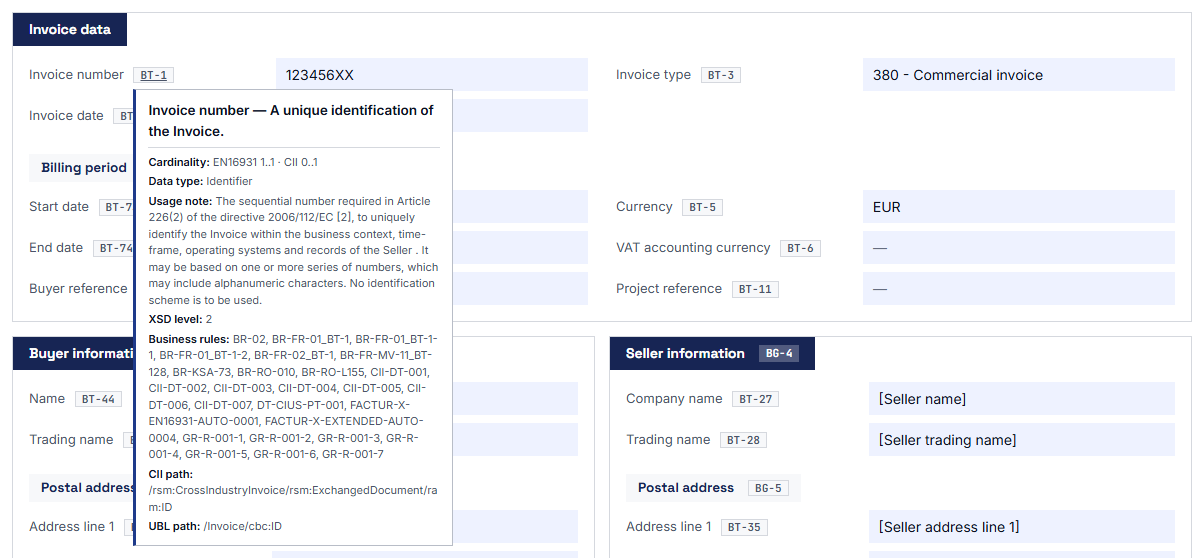
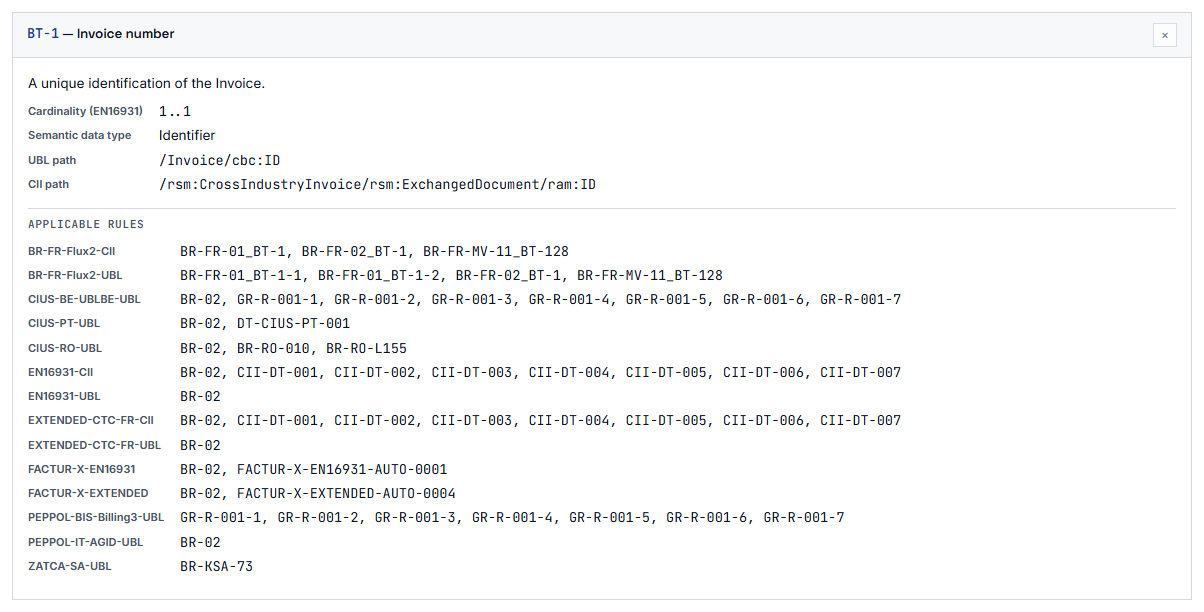
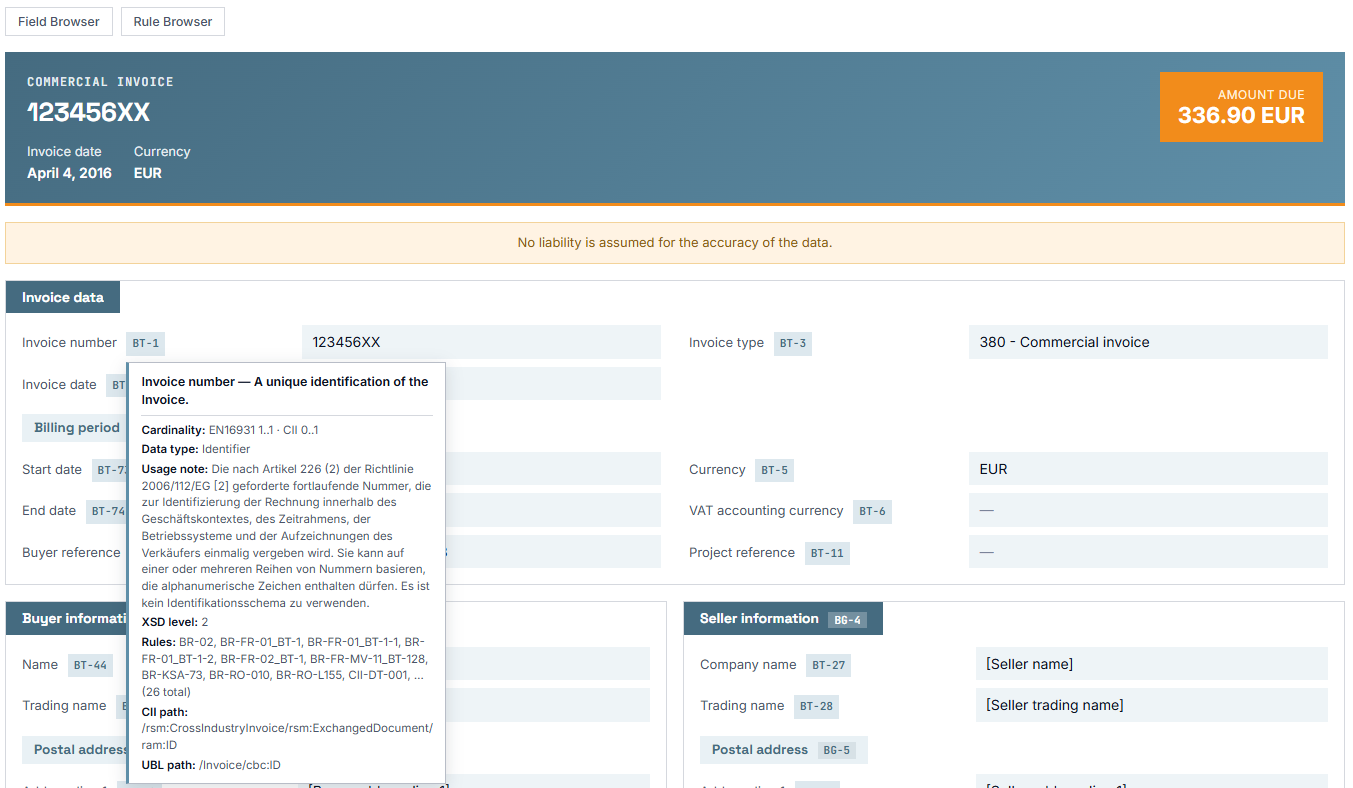
Extended tooltip in the eInvoice Viewer. For one field it shows how often the field may occur, the data type, the usage note, the level in the XML schema, the validation rules and the path in CII and in UBL.

Note Note

1. Upload the add-on

You download the ZIP file from the shop, upload it in WordPress under “Plugins” and activate the add-on. The free Viewer is already active.

Tools Tools

2. Open an invoice

You load an e-invoice into the Viewer and hover over a field number. The technical details appear right away, with nothing to configure.

Adjust Adjust

3. Place an overview on a page

You write [svtd_field_browser] into a page and publish it. The field overview is then ready for you and your visitors.

Tooltips that go deeper

Every field number the free Viewer shows gets additional rows in its tooltip. The first names the cardinality under EN 16931, which means how often the field may or must occur, together with the differing value for CII or Factur-X if there is one. Further rows name the data type, the level in the XML schema, the reference table and the business rules of the field, followed by the path in CII and in UBL. All rows appear in the language of the page.

What this means for you: You see on the spot whether a field is mandatory, what belongs in it and where it sits in the XML, without leaving the invoice.

The tooltip on a field number shows the cardinality, data type, level in the XML schema, reference table, business rules and the paths in CII and UBL.

Codes that are not in their list stand out at once

Some fields contain a code from a code list. If such a field contains a code that does not appear in the matching reference list, the Viewer marks the field red and names the list, for example: “This code is not in the reference list UNTDID 1001.” The checked fields include the document type, the currency, the countries, the tax categories, the payment means and the units of measure.

What this means for you: You spot a typo or an invented code while you look at the invoice, and you can tell the sender exactly which list the code violates.

A field marked in red with the note “This code is not in the reference list UNTDID 1001.”

One click on the field number opens the code list

When you click a field number, the reference list for that field opens in a separate window. If a field has no reference list, the click opens the field overview right at that field.

What this means for you: The invoice and the reference sit side by side, and you see at once which values are allowed in this field.

The field overview

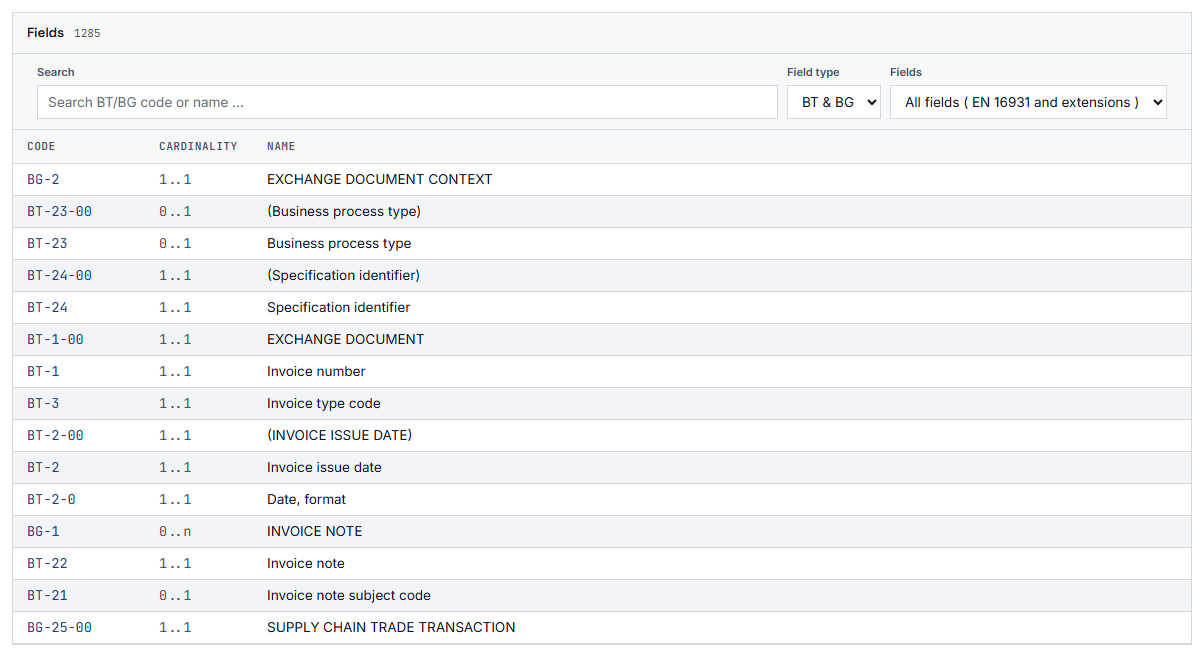
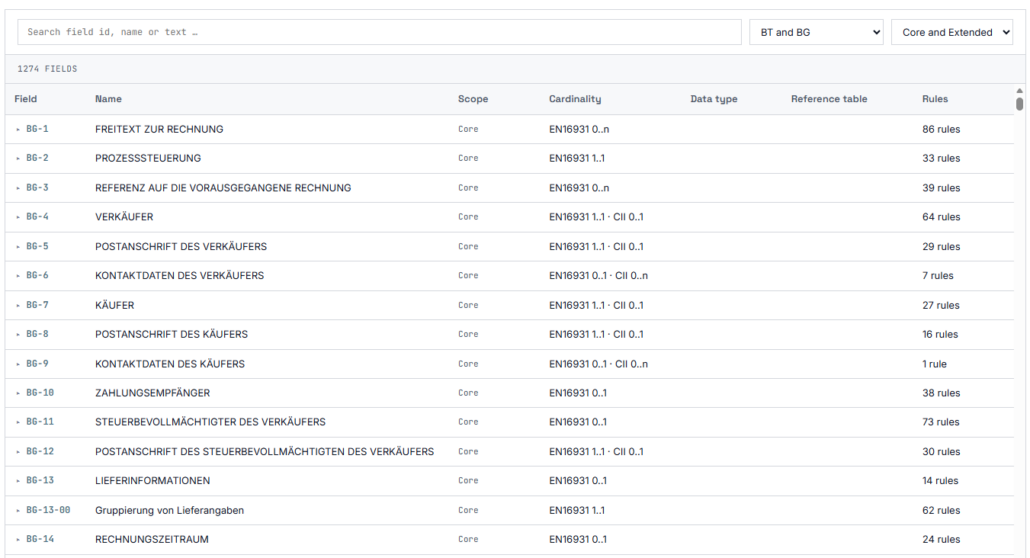
The shortcode [svtd_field_browser] shows the 311 fields of EN 16931 in a searchable list. A shortcode is a short placeholder in square brackets that WordPress replaces with a tool on the page. The list is ordered by the numbered fields and field groups of the standard, the Business Terms (BT) and Business Groups (BG). You can filter it by field type, and every row expands to the complete technical view.

What this means for you: You can look up a field even when there is no invoice in front of you, for example while building an interface.

The field overview with its search box and filter.

The rule overview

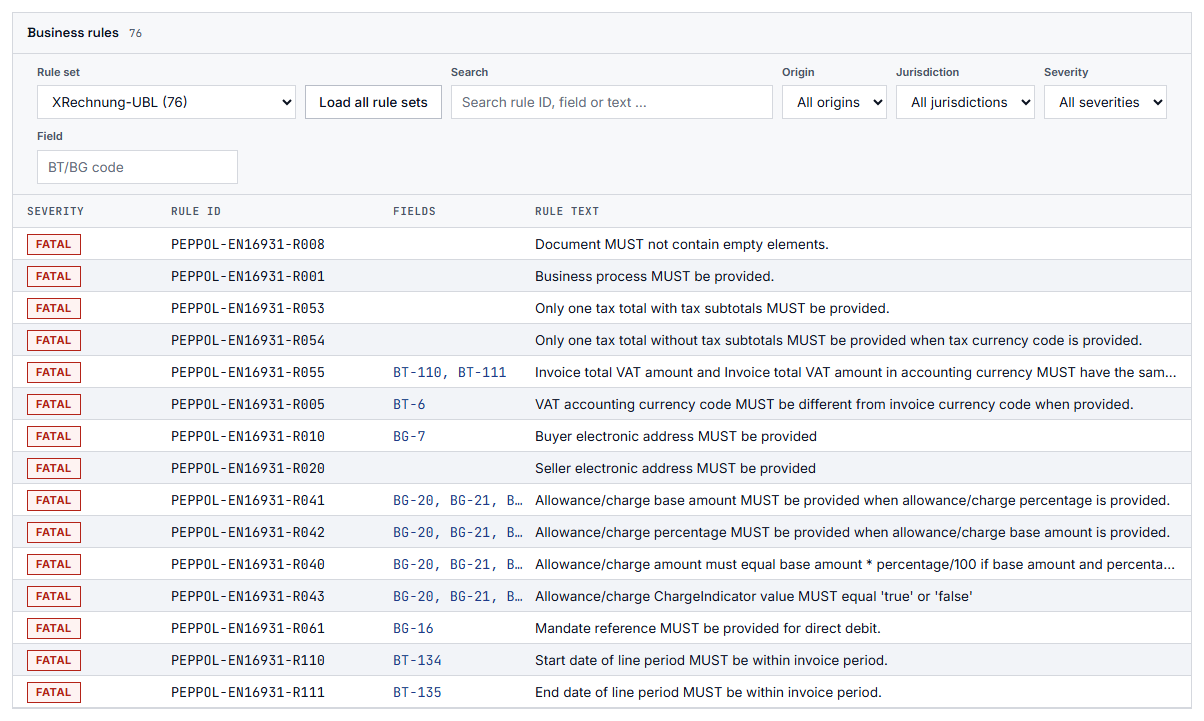
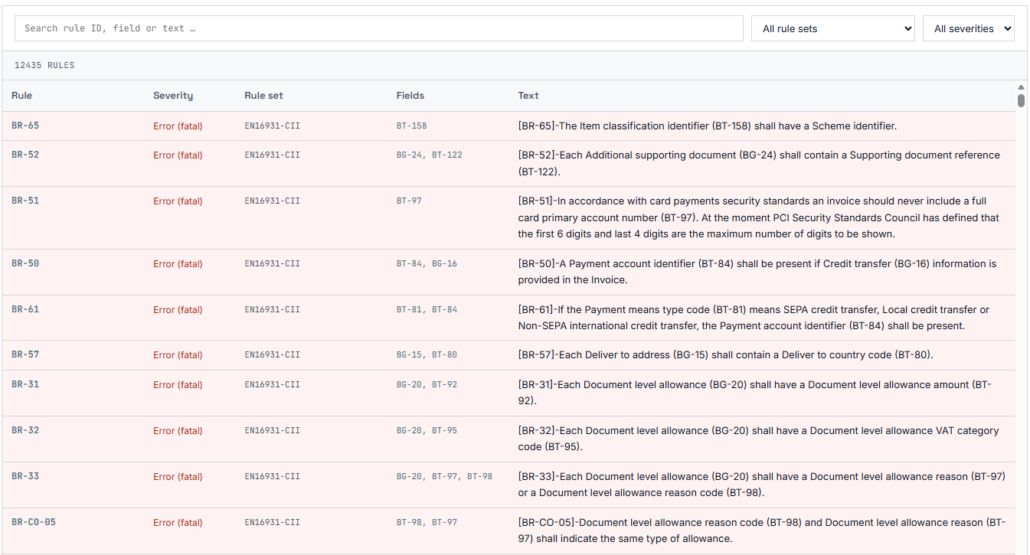
The shortcode [svtd_rule_browser] shows the rule catalog with 9,271 validation rules from 17 rule sets. The rules are written in Schematron, the language in which the validation rules for e-invoices are published. The rule sets include the core of EN 16931, XRechnung, Peppol BIS Billing, Factur-X and the supported national CIUS; a CIUS is a national specification that narrows EN 16931 for one country. You search by identifier, field or text and filter by rule set, field, origin, country and severity. Every rule names the body that published it.

What this means for you: When a validator reports a rule identifier, a single search tells you what the rule requires and which rule set it comes from.

The rule overview with the validation rules of the rule sets.

The reference overview

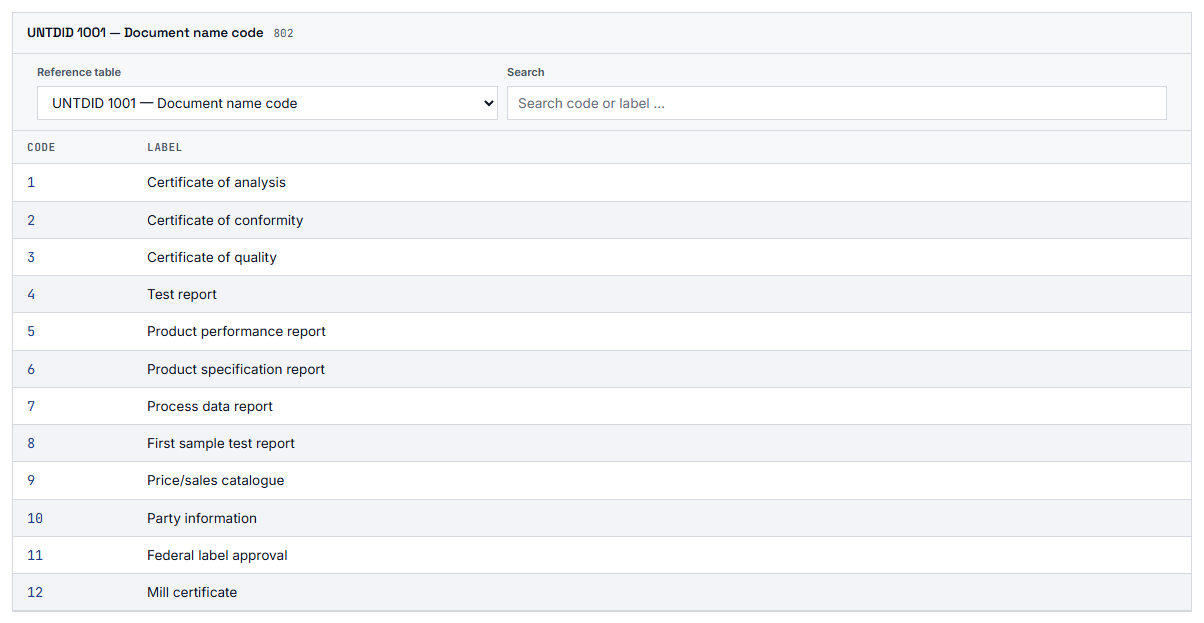
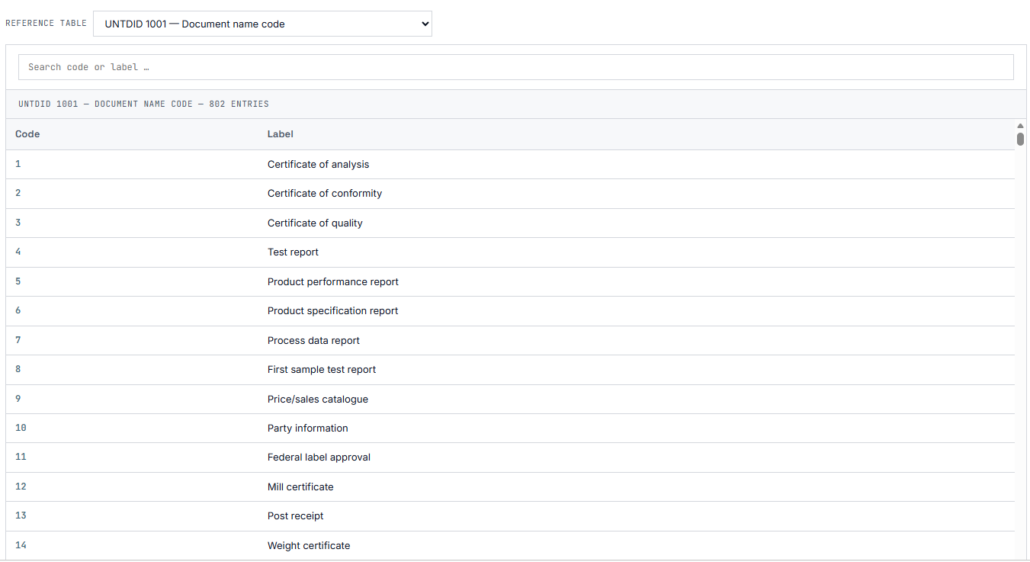
The shortcode [svtd_reference_browser] shows 17 code lists, including UNTDID 1001, UNCL 5305, VATEX, ISO 4217, ISO 3166-1, UN/ECE Rec. 20 and 21, ICD, EAS and MIME. You see one table at a time and search it by code and by name.

What this means for you: You find the right code for a unit of measure, a payment means or an exemption reason without gathering the lists one by one.

The reference overview with the code lists.

  • The developer who builds an invoice interface

    She has to know which field is mandatory, which data type it has and where it belongs in the XML. She looks the field up in the field overview and reads the cardinality, the data type and both paths there.

  • The integrator who clears up a rejected invoice

    The customer’s validator reports a rule identifier. He searches for it in the rule overview, reads the rule and sees in the Viewer, at the field concerned, what the invoice actually contains.

  • The reviewer in accounts payable

    She sees a field marked red in the invoice with a note about the reference list. One click on the field number opens the list, and she tells the supplier the allowed code.

  • The software company or association with its own website

    The three overviews serve as a reference on public pages, and visitors do not need to log in to use them.

Three shortcodes

Each overview is a shortcode without any further options. You place it in a page or a post: [svtd_field_browser], [svtd_rule_browser] and [svtd_reference_browser].

Note Note

Field overview

311 fields of EN 16931, searchable and expandable

Tools Tools

Rule overview

9,271 validation rules from 17 rule sets

Adjust Adjust

Reference overview

17 code lists, for example for currencies, countries and units of measure

The three overviews that Technical Details brings to your pages.

Two settings, and you choose who gets the add-on

The add-on adds its own section to the page eInvoice Viewer → Viewer. Under Business rules in the tooltip you choose between “the first 10” and “all”; the default is “the first 10”, because a field can carry many business rules and the complete list can make the tooltip very long. The checkbox On deletion decides whether deleting the plugin also removes its settings. It starts unticked, so a reinstallation keeps your choices.

Under Extensions available from role on the same page, you decide from which WordPress role on the add-on appears in the Viewer; this needs Viewer version 2.35.0 or later. The three overviews on your pages are not affected and stay visible to every visitor.

What you get: You can offer the Viewer publicly and keep the technical details for your staff.

In your website’s design, with your own design kit if you like

Since version 1.13.0, the field, rule and reference overviews are built from the panels, filter bars and tables of the selected design kit, so they look like the other eInvoice tools. Besides the bundled kits, you can upload a kit of your own on the Viewer’s page: a CSS file with your website’s color and font values, at most 32 KB. Once saved, it applies to all eInvoice tools and survives plugin updates. Rows, controls and table names appear in the language of the page.

What you get: The reference works match the rest of your website without any change to the plugin.

New versions show up in the plugin list

When a newer version is available in the shop, WordPress shows it in the plugin list. For this, your website asks invoicePress.de at most once a day which version is the newest. The request carries no address of your website, and you can switch it off with the filter einvoicepress_shop_update_check. Downloads still come from your customer account in the shop.

Technical Details as an app, without WordPress

You want the reference works for fields, rules and code lists, but you do not run a WordPress website? Then use Technical Details as an app. The app is a folder that you open in your browser with a double-click on your computer, on your intranet or on your own web server, with no installation and no server. Like the plugin, it is a paid product with a site license for your location, and it is coming soon to the shop.

Try it out

Try all three references in the demo

Field Browser

The demo shows the fields of the core of EN 16931 and, in addition, the fields of the EXTENDED profile. You can search, filter by field type and scope, and expand every row.

An expanded row of the field overview shows the complete technical view of the field.

Rule Browser

In the demo you search the validation rules and filter by rule set and severity. The rows are colored by severity, so you can tell the severity levels apart at a glance.

Reference Browser

The demo shows 17 reference tables, including UNTDID, ISO 3166-1, ISO 4217, UN/ECE Rec. 20 and 21, ICD, EAS, MIME and VATEX. You see one list at a time and can search within it.

  • No invoice data leaves your server.

    The add-on runs on your own server and uses no outside service. The only outgoing request is a daily question to invoicePress.de whether a newer version is in the shop; it carries no invoice data and no address of your website.

  • The overviews show only bundled data.

    The field overview, the rule overview and the reference overview read only data that is included in the plugin.

  • The tooltips read only what the Viewer already has.

    The add-on uses only the data the free Viewer has already read from the visitor’s file.

  • No invoice data is stored.

    The database holds only your choice for “Business rules in the tooltip” and the checkbox “On deletion”. In addition, the website remembers the answer about the newest version for one day.

Check it yourself: Press F12 to open your browser’s network panel and open one of the overviews. You will see only requests to your own website.

Good to know before you buy

  • It does not check an invoice for validity. The reference lists are the complete lists of the UN and ISO, so a code from the list can still violate EN 16931; that is what a validator checks. The note above the invoice points this out as well.
  • The extended tooltips need the free Viewer, because without it there is no invoice view for them to appear in. The marking of codes and the click on the field number need the Viewer in version 2.34.0 or later.
  • The fields and rule sets of ZUGFeRD / Factur-X EXTENDED are shown only together with the add-on Extended Profiles. ZUGFeRD and Factur-X are PDF files with an embedded XML invoice; the format is called ZUGFeRD in Germany and Factur-X in France. EXTENDED is the profile with the most fields.
  • Most code lists are in English. German names exist for UNTDID 1001 and UNTDID 4461.
  • The shortcodes have no attributes. An overview therefore cannot be preset to one rule set or one table.
Note Note

eInvoice Viewer for PEPPOL & EN16931

The Viewer is the invoice view in which the extended tooltips appear.
free

Tools Tools

Extended Profiles

Extended Profiles adds 974 fields of the extensions to the field overview, 963 of them from the EXTENDED profile of ZUGFeRD and Factur-X, which makes 1,285 fields in total. It also adds three rule sets with 3,190 further rules, so 12,461 rules from 20 rule sets in all.
Paid product

311

fields of EN 16931 in the field overview

9,271

validation rules from 17 rule sets in the rule overview

17

code lists in the reference overview

0

pieces of invoice data sent to an outside server

The validation rules come from the phive-rules project. It bundles the official validation files of the publishing bodies: CEN/TC 434 for EN 16931, KoSIT for XRechnung, OpenPeppol for Peppol, FNFE-MPE for France, FeRD for Factur-X and the national CIUS bodies.

Yes, for the heart of the add-on. The extended tooltips, the marking of codes and the click on the field number appear in the Viewer’s invoice view. The three overviews, on the other hand, read only the bundled data of the add-on.

No. It shows what the standard defines for a field and marks codes that are not in their list. Whether an invoice complies with all rules is determined by a validator.

They come from the phive-rules project, which bundles the official validation files of the responsible bodies. Every rule names the body that published it.

Not your invoice data. The add-on reads only its bundled reference data and, for the tooltips, the data the Viewer has already read from the visitor’s file. The only outgoing request is a daily question to invoicePress.de whether a newer version is in the shop. It carries no address of your website, and the filter einvoicepress_shop_update_check switches it off.

Yes, together with the add-on Extended Profiles. The field overview then also shows the 974 fields of the extensions: 963 from ZUGFeRD / Factur-X EXTENDED, 5 from EXTENDED-CTC-FR and 6 from a further extension. A filter narrows the list to each extension separately.

You buy it in the shop on invoicePress.de, where you also see the price, and receive a ZIP file that you upload to WordPress.

Turn your Viewer into a reference work: try the demo and get Technical Details in the shop. With your very next invoice, every field number shows you what the standard requires. You do not have the eInvoice Viewer yet? It is free, and you install it first.

11,90 € incl. VAT · instant download after purchase