eInvoice Viewer — Inbound Check

Add-on for the eInvoice Viewer · For WordPress and the Viewer app · Paid product · Version 1.6.0

Does this invoice fit you? One click tells you, before you pay.

The Inbound Check is an add-on for the free eInvoice Viewer for WordPress. It compares an incoming e-invoice, that is, an invoice as a file that a program can read, with your company data and your supplier list. It then tells you in full sentences what stands out, for example a wrong recipient company, an unknown account or a third-party payee.

For this it places the button “Inbound Check” in the result view of the viewer, and one click is enough. It does not call any outside service in the process.

App and plugin

The Inbound Check in the app and in the WordPress plugin

In the app. The Inbound Check is an add-on for the free viewer app. You put it into the viewer’s folder, as a folder or as a single file, and it is there the next time you start the viewer. Next to the one-file app, the single file is enough. You enter your company data and the supplier list in the settings dialog of the viewer.

In the WordPress plugin. On your website you install The Inbound Check as a plugin of its own next to the free viewer plugin. There you get the additional functions of a website: you limit the calls per visitor and day and decide from which role the add-on appears. In the plugin, company data and supplier list are stored in your website’s database, and only administrators add suppliers.


An invoice can be free of errors and still not be right

The e-invoice opens, all fields are filled, and the totals add up. Still, the question that matters before every payment remains: is this really our invoice, and is the money going to the right party?

Perhaps the invoice is addressed to a company with a similar name. Perhaps the long-standing supplier suddenly gives a different account, or the money is to go to a third party you have never heard of. All of this is in the invoice, but it does not catch the eye.

Anyone who wants to check this by hand compares names and IBANs character by character on every invoice. On a busy day, exactly this check is the one that gets left undone.


One click compares the invoice with what you know

You enter your company data and your suppliers with their bank accounts once. After that, one click on “Inbound Check” is enough for every invoice, and you receive a list of findings. A finding is a single observation of the check, with a heading and an explanation. Its colour shows you how serious it is: you should clarify a red finding before payment, and a warning deserves a second look.

Recipient
Is the invoice addressed to you?
Bank account
Does the money go to a known account?
Payee
Does the seller get the money, or a third party?
References
Do order and contract numbers match your patterns?
Supplier profile
Are currency, payment term and country as usual?
Mandatory information
Is the information required by VAT law on the invoice?
The six checks that one click on “Inbound Check” triggers.

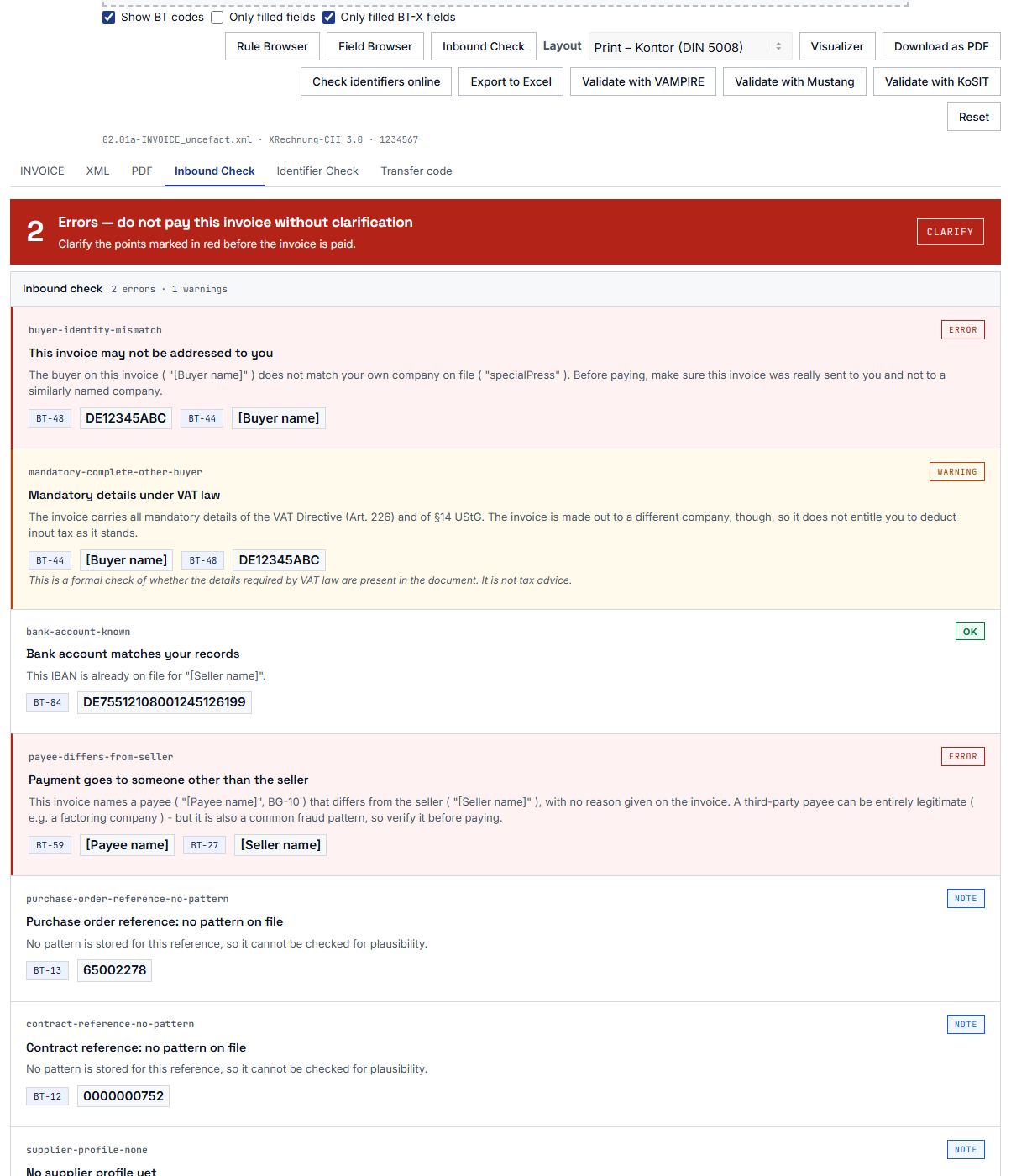
Screenshot of the result view with an open sample invoice, below which the list of Inbound Check findings appears, each with a heading, an explanation and a colour marking.

Findings in their own tab and right at the field

Starting with Viewer version 2.38, the findings appear in their own “Inbound Check” tab, which opens by itself after the check. A second click on “Inbound Check” opens it again without running the check a second time. Red findings and warnings also appear as a complete card with their explanation right at the affected field of the invoice, and above the invoice you see how many fields are marked. If the button should not appear on a particular page, add button_spiv_inbound="no" to the Viewer’s shortcode there.

What you get: You read the invoice and the findings side by side and see at once, at the spot that does not fit, why it stands out.

Maintain the supplier list where you check

From Viewer 2.37.1 on, a “Supplier list” button sits next to the “Settings” button above the Viewer. It opens the settings dialog right at the list, in the plugin as well as in the Viewer app. Administrators maintain your company, the mandatory details and the suppliers there; it is the same data as on the settings page. You do not have to type in your suppliers: the list reads the DATEV export of your creditor master data and lists with the usual column names, for example from Lexware or sevdesk.

What you get: A new supplier or a changed account is added in seconds, without leaving the page with the invoice.


Note Note

1. Activate the add-on and enter your company

You upload the ZIP file to WordPress and activate the add-on next to the eInvoice Viewer. Under “eInvoice Viewer → Inbound Check” you then enter your company data.

Tools Tools

2. Create or import suppliers

You create your suppliers by hand or import them as a CSV file. A CSV file is a simple table file that any spreadsheet program can save.

Adjust Adjust

3. Open and check an invoice

You open an invoice in the viewer and click “Inbound Check”. The findings appear immediately.


Is the invoice addressed to you?

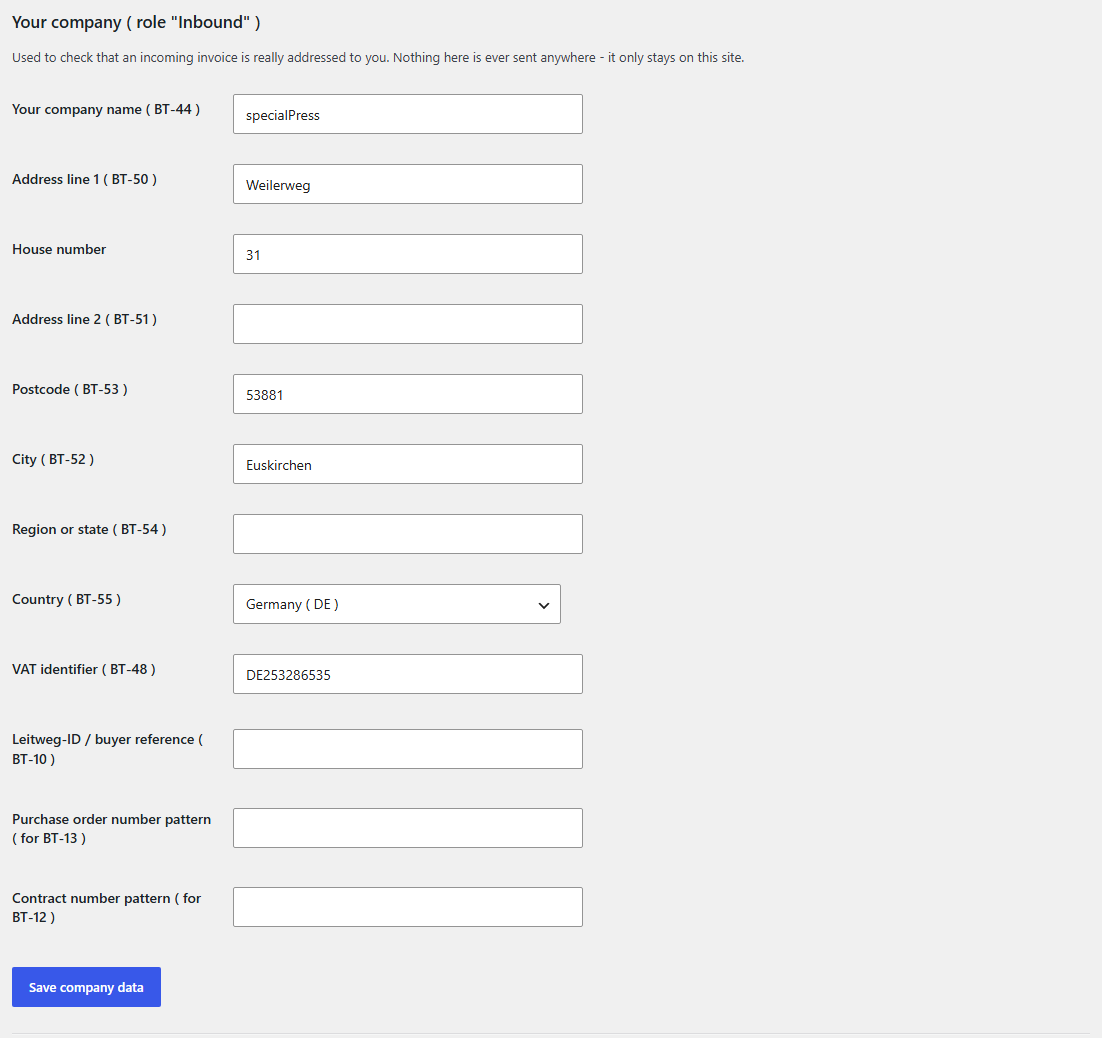
The check compares the buyer’s name, VAT ID and address on the invoice with your company data. It ignores small differences in upper and lower case or in spaces. If the name or VAT ID differ, you receive a red finding that names both values. If only the address differs, this is a warning.

What you gain: An invoice addressed to a company with a similar name is noticed before it is booked. You also notice a wrong address in time. This matters because it can put your input tax deduction at risk, that is, the right to claim the VAT from the invoice from the tax office.

Screenshot of the settings section “Your company”, in which the fields are filled in with the data of a sample company.

Does the money go to a known account?

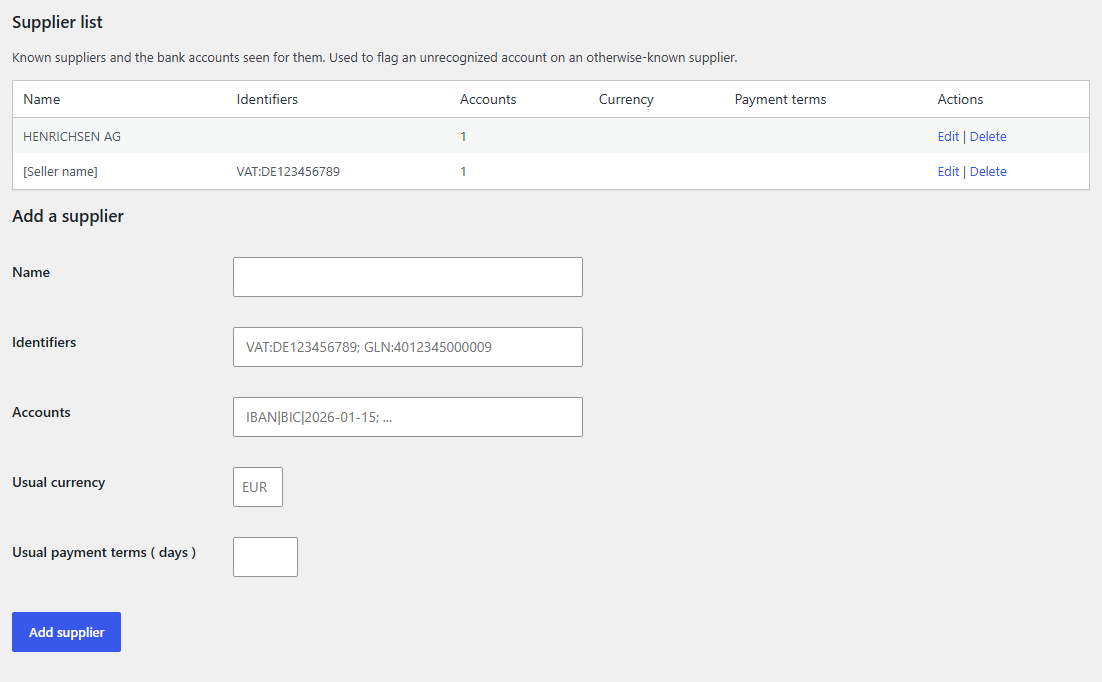
The check looks for the seller in your supplier list, first by the VAT ID and then by the name. A known bank account is confirmed. If a known supplier gives a bank account that has never appeared for them before, you receive a red finding that also explains the fraud pattern that may be behind it. If the seller is not on the list at all yet, the check reports a first invoice.

What you gain: If a supplier supposedly changes account, you see it on the first invoice with the new account and not only when the money is gone.

Screenshot of the supplier list section with a table of sample suppliers and the form for adding a new supplier.

Take over a confirmed account with one click

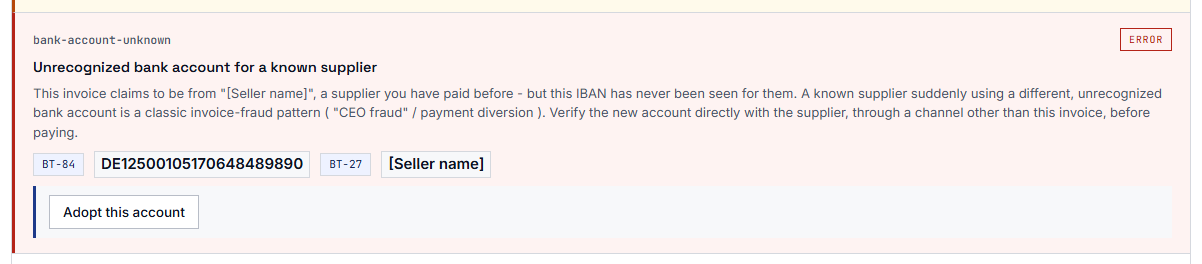
For a first invoice and for an unknown bank account, the finding carries the button “Adopt this account”. It adds the account to the supplier, and if the supplier is new, it creates the supplier. Only administrators can use this button; the check itself never changes the supplier list.

1 · Finding
first invoice or unknown account
2 · Clarify
for example with a call to the supplier
3 · Take over
an administrator clicks “Adopt this account”
4 · On the list
confirmed as a known account from then on
How your supplier list grows: a new account only gets in when a person explicitly takes it over.

What you gain: Your list grows with your daily work, and only what a person has explicitly confirmed gets in.

Screenshot of a red finding about an unknown bank account for a known supplier, with an explanation and the button “Adopt this account”.

Does the seller get the money, or a third party?

If the invoice names a payee other than the seller, you receive a red finding with both names. This can be in order, for example when a factoring company has bought the receivable from the seller. A different payee is, however, also a common fraud pattern.

What you gain: You do not overlook a different payee, even if it is in an inconspicuous place on the invoice.

Do order and contract numbers match your patterns?

You enter what your order and contract numbers look like, for example PO-2026-#####. The check looks for the fixed beginning of this pattern, here PO-, in the reference on the invoice. If it is missing, you receive a warning. It never becomes a red finding, because it is only a hint as to whether the reference is plausible.

What you gain: If an invoice refers to an order that does not look like one from your company, you take a second look.

Does the invoice look like your usual business with this supplier?

For a supplier found by their VAT ID, the check compares three things: the invoice currency with their usual currency, the due date with their usual payment term, with three days of leeway, and the seller’s country with the countries of their stored bank accounts.

What you gain: You notice unusual terms even for a supplier whose invoices you would otherwise release without thinking.

Is the information required by VAT law present?

The check looks at whether the information required by VAT law is on the invoice. The basis is EU law, and depending on the recipient’s country, the German or the Austrian VAT Act is added. It checks 24 rules according to Article 226 of the VAT Directive, 4 German rules according to § 14 UStG and 2 Austrian rules according to § 11 UStG 1994, plus the simplifications for small-amount invoices in both countries.

Every missing item appears as a finding of its own with its name, for example “Sequential invoice number” or “Tax number or VAT ID of the issuer”. You set which regulations are to apply on the settings page. It is a formal check and not tax advice.

What you gain: You see missing mandatory information during the first review and can request it from the supplier before you book.


  • The accounts payable clerk

    She opens every incoming invoice in the viewer and clicks “Inbound Check” before releasing it. If a red finding on the bank account shows up, she first calls the supplier and only pays afterwards.

  • The managing director of a small company

    He pays his invoices himself. He knows his suppliers well, but not their IBANs by heart. The supplier list remembers them for him, and the check speaks up as soon as something is different from usual.

  • The company with the viewer on its public website

    Visitors are to be able to view invoices there, but the inbound check is only meant for the company itself. One tick in the settings is enough, and visitors see the viewer without the button.


Everything on one settings page

All settings are under “eInvoice Viewer → Inbound Check”. From Viewer 2.37.1 on, administrators can also maintain company, mandatory details and supplier list in the settings dialog on the page with the Viewer. The add-on needs no shortcode of its own, that is, no placeholder in square brackets that WordPress replaces with a tool. It appears solely through its button in the viewer.

Who may check

By default, every visitor to the page with the viewer can use the button. With the box “Logged-in users only” you give the check only to logged-in users. Developers can additionally restrict it to users with a specific capability via the filter spiv_capability, for example like this:

add_filter( 'spiv_capability', function () {
	return 'edit_posts';
} );

The supplier list

For each supplier you store name, identifiers, accounts, usual currency and usual payment term. You write identifiers as scheme and value, for example VAT:DE123456789; GLN:4012345000009. You can import the whole list from a CSV file and export it again as a CSV file. If you also use the plugin “eInvoice Inbound” for the inbound check in the backend, that is, in the WordPress admin area, you maintain the list only once, because both plugins read the same list.

Which law applies to the mandatory information

By default, the check follows the country of the invoice recipient on the invoice. For Germany the German rules apply in addition, for Austria the Austrian ones, and for other EU countries only the EU rules. Under “Regulations to apply” you can instead set one rule set permanently or choose “Do not check the mandatory details”.
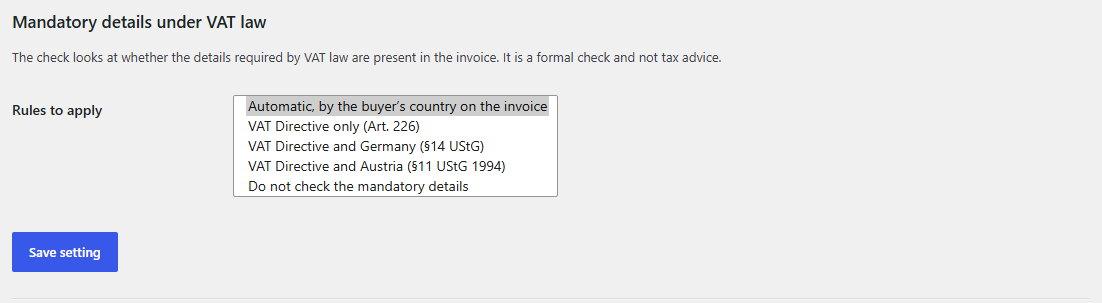

Screenshot of the section on the information required by VAT law, with the selection list of the five rule sets.

Inbound Check in the Viewer app

You don’t run WordPress? For the free Viewer app, the Inbound Check is available in the shop as a separate add-on package with the same checks. There it works entirely in your browser, without WordPress and without a server, and it needs the Viewer app 2.36.0 or later. You unpack the ZIP file into the app’s folder, reload the app and enter your company and your suppliers in the settings dialog.

In the app, your browser stores your company data and the supplier list, and no server ever sees them. With “Save to file” you take everything with you as one backup file, and with “Load from file” you bring it back. This file contains your suppliers’ bank details in plain text, so keep it as carefully as a bank statement.

What you get: You are protected against changed accounts and unknown payees even without a website of your own, and your supplier data stays on your computer.

The Viewer app itself is a free download.


  • The check stays with you.

    The invoice is read and checked in your browser and not transferred to your website. To compare the supplier data, the browser asks your own WordPress website and only gets the answer “known”, “new” or “different” back; the supplier list itself does not leave your server.

  • No outside service is called.

    Every comparison runs against the data you have stored on your own website.

  • The invoice is not stored.

    The invoice data serve only the check and are discarded afterwards. Only your company data, your supplier list and the settings are stored, in the WordPress database of your website. Your suppliers’ IBAN and BIC are stored there encrypted.

  • You decide who sees the findings.

    Findings can name your company name, your patterns for references and the names, usual currencies and payment terms of your suppliers. By default the check is open to every visitor; with “Logged-in users only” you close it to visitors who are not logged in.

Check it yourself. Press F12 to open your browser’s network view and click “Inbound Check”. There you only see the short request to your own website for the supplier comparison and no request to an outside address.

Screenshot of the viewer toolbar with the button “Inbound Check”.


We tell you openly what the Inbound Check does not do:

  • The Inbound Check does not read the invoice itself. It works with the invoice data the viewer has already read and therefore does not run without the eInvoice Viewer.
  • It does not call any outside service. It therefore does not check whether a VAT ID or an IBAN actually exists. It checks whether it matches your stored data.
  • It does not store any invoice. It does not keep a log of the checks either.
  • It does not compare the bank account of a different payee. For a separate payee it compares only the name.
  • It does not replace tax advice. The check of the mandatory information is a formal check. It does not decide, for example, whether a tax rate is correct in substance.
Note Note

eInvoice Viewer for PEPPOL & EN16931

The viewer reads the e-invoice and shows it as a readable document. It is the prerequisite for this add-on and available on wordpress.org.
free

Tools Tools

Identifier Check

This add-on checks whether VAT ID, IBAN, BIC and GLN are formed correctly and so finds typos and transposed digits.
Paid product

Adjust Adjust

eInvoice Inbound

This plugin offers the inbound check in the WordPress admin area, also for many invoices at once, and reads the same supplier list.
Paid product


6

checks with one click: buyer, mandatory information, bank account, payee, references and supplier profile

30

rules for the information required by VAT law: 24 under EU law, 4 German and 2 Austrian

12

fields for your company data

3

days of leeway when comparing the due date

0

calls to outside services

The interface is available in German and in English.


Yes. The Inbound Check is an add-on: it places its button in the result view of the viewer and works with the invoice data the viewer has read. You get the viewer free of charge.

No. The invoice stays in your browser. Only the question whether a supplier and their bank account are known goes to your own website; nothing goes to an outside service. The invoice is not stored.

By default, every visitor to the page with the viewer. If you tick “Logged-in users only”, visitors who are not logged in see the viewer without the button.

No. The check itself never changes the list. Only administrators can take over an account, and they too only with an explicit click.

No. It tells you whether the invoice matches your company data and your supplier list and whether the information required by VAT law is present. Whether the invoice meets all the rules of its format is checked by a validator, that is, a checking program for the rules of an e-invoice.

No. A red finding means that this information differs from what you have stored. Clarify the information before payment; the explanation in the finding tells you why this matters and how to proceed.

The Inbound Check is a paid product, and you find its price in the shop. The eInvoice Viewer it requires is free.


Enter once who you are and whom you pay, and then check every incoming invoice against it with one click. That way you pay knowing that recipient and account match your data. You do not have the eInvoice Viewer yet? Then start with it, because it is free.